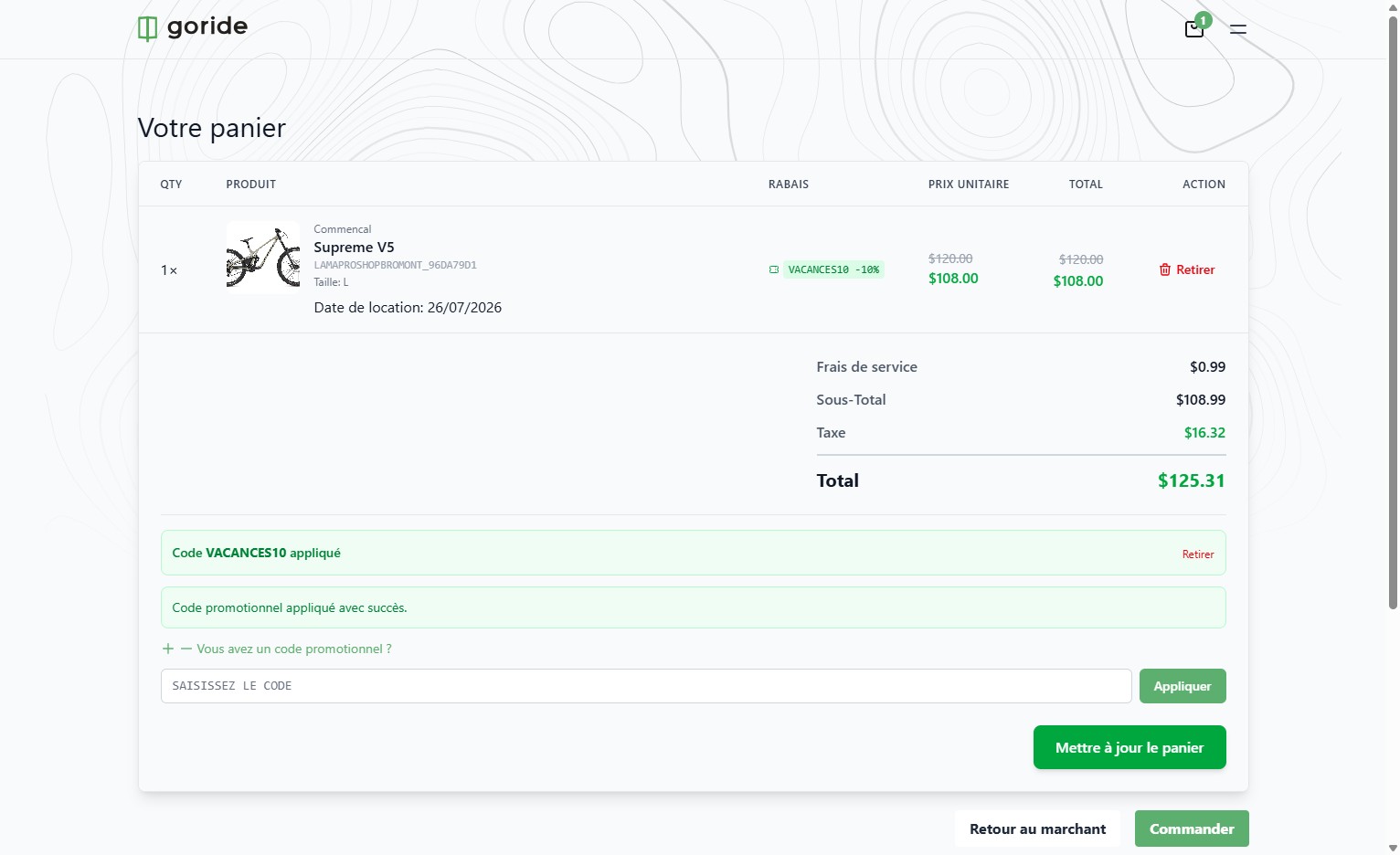
Step 1 — Navigate to Your Dashboard
Go to your GoRide merchant dashboard.
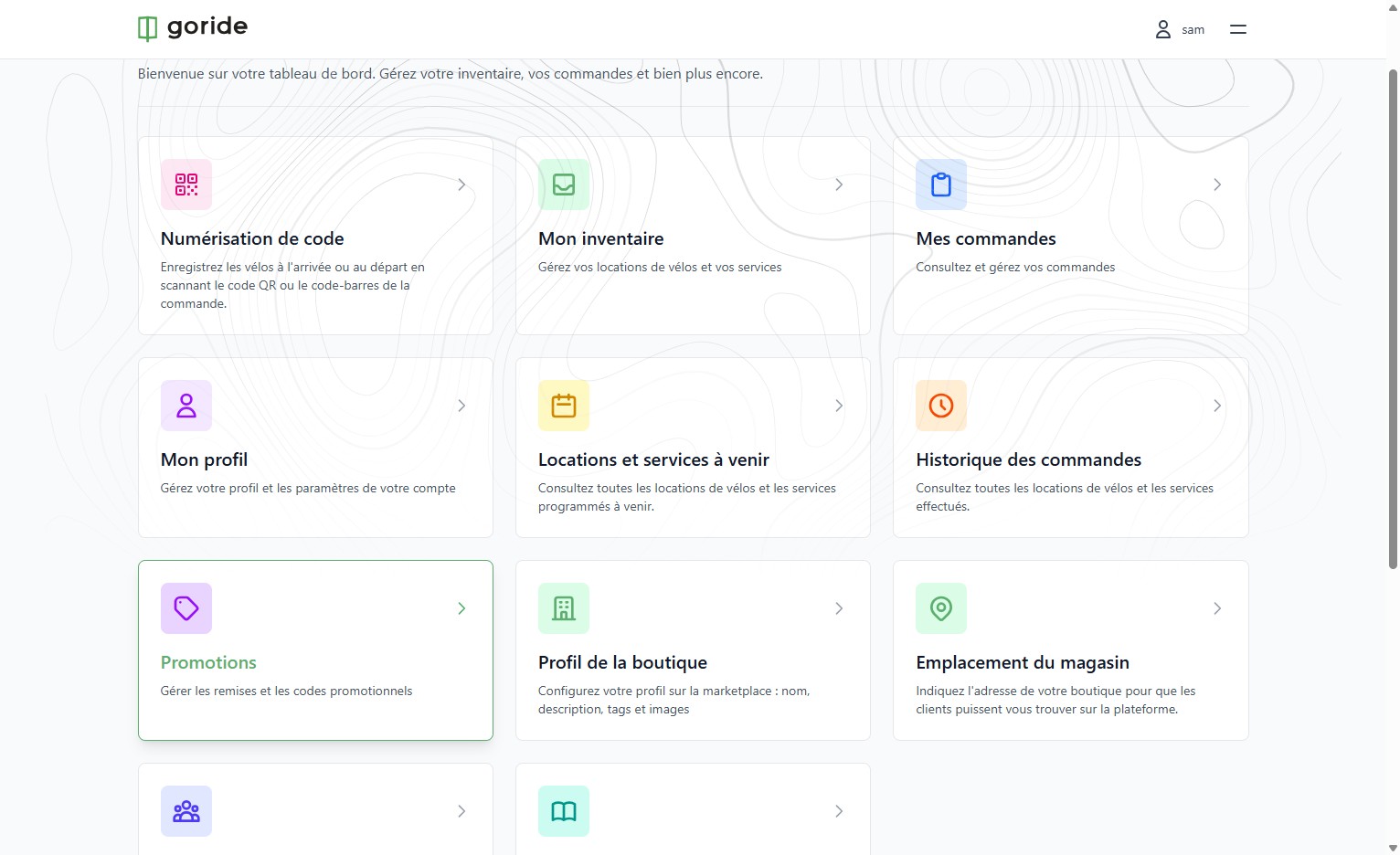
Step 2 — Open Promotions
Click "Promotions" in the left navigation menu.
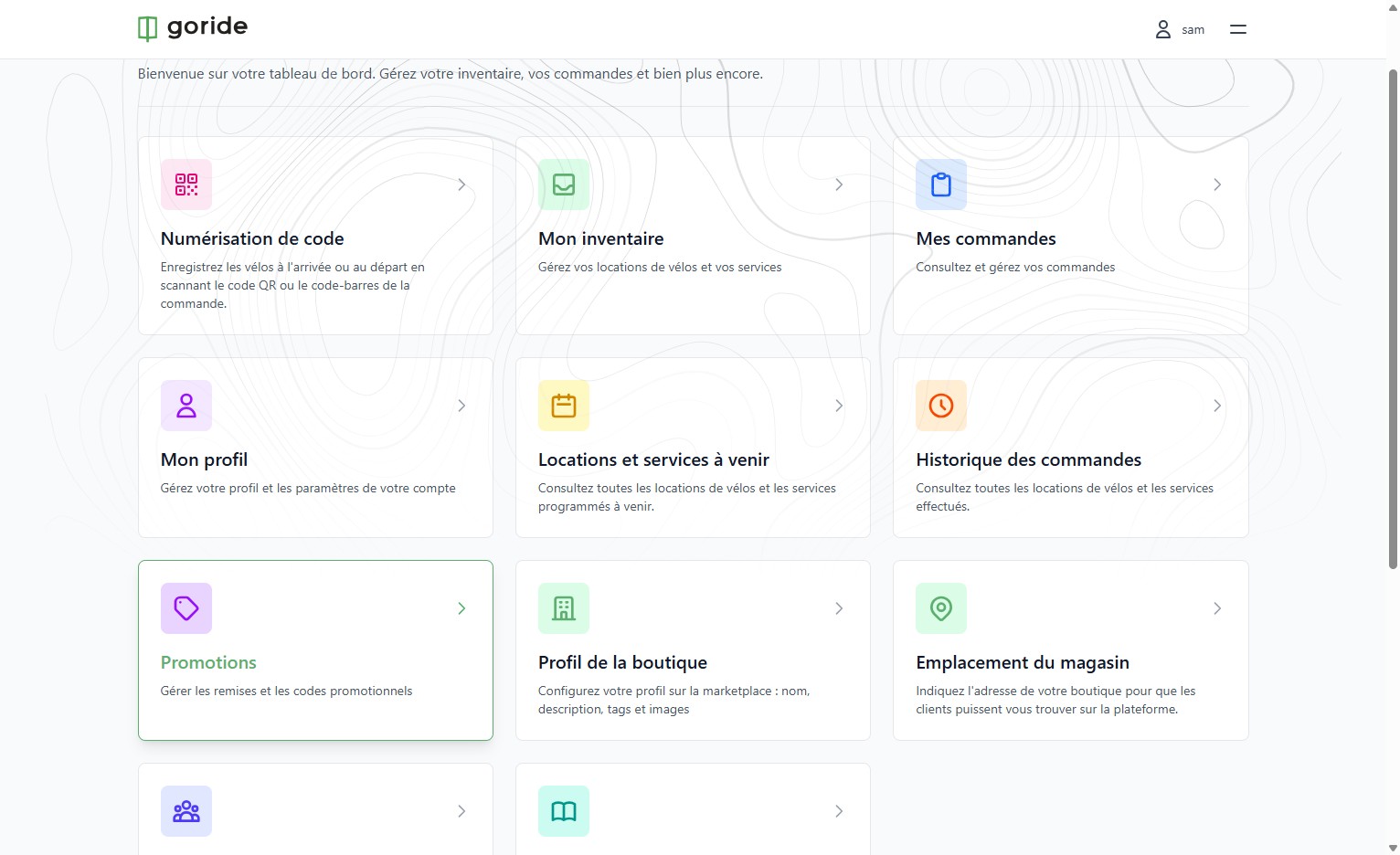
Step 3 — Go to Promotional Codes
Click "Codes promotionnels" to access the promo code section.
Important note: Reductions are automatically applied based on selected conditions on all orders meeting those conditions. Promo codes must be inputted at checkout by the client to activate.
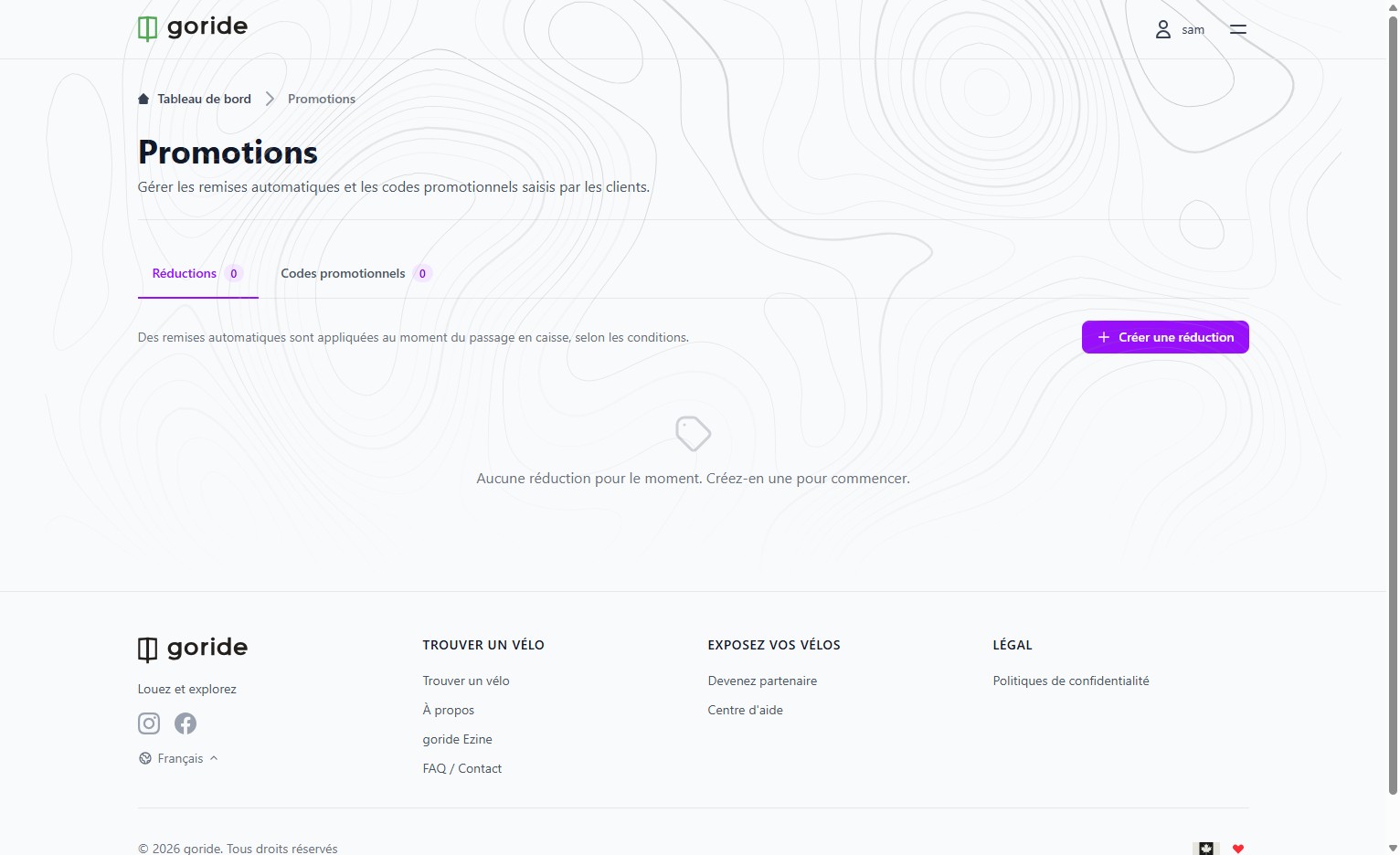
Step 4 — Create a New Code
Click "Créer un code promotionnel" to open the creation form.
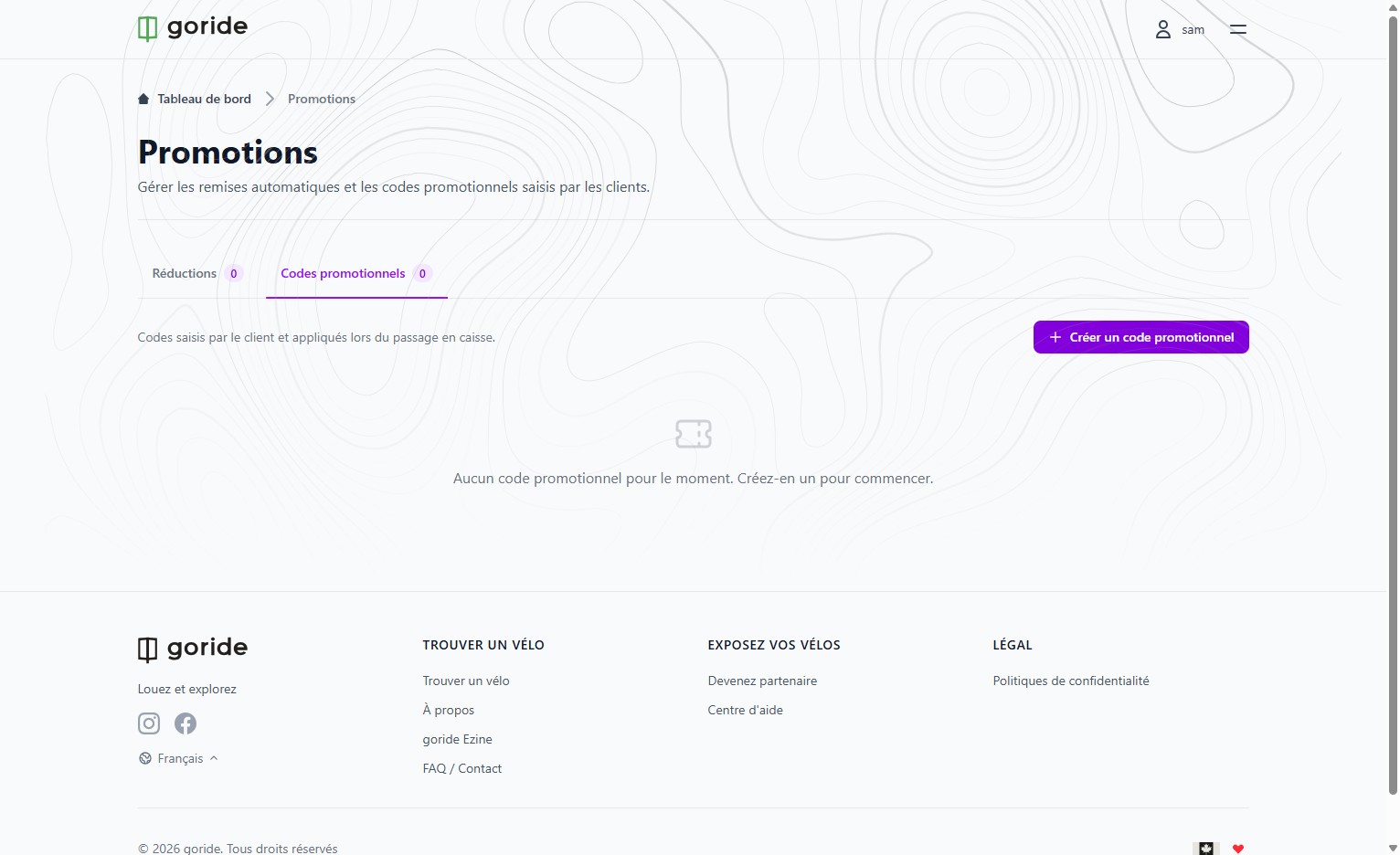
Step 5 — Name Your Promo Code
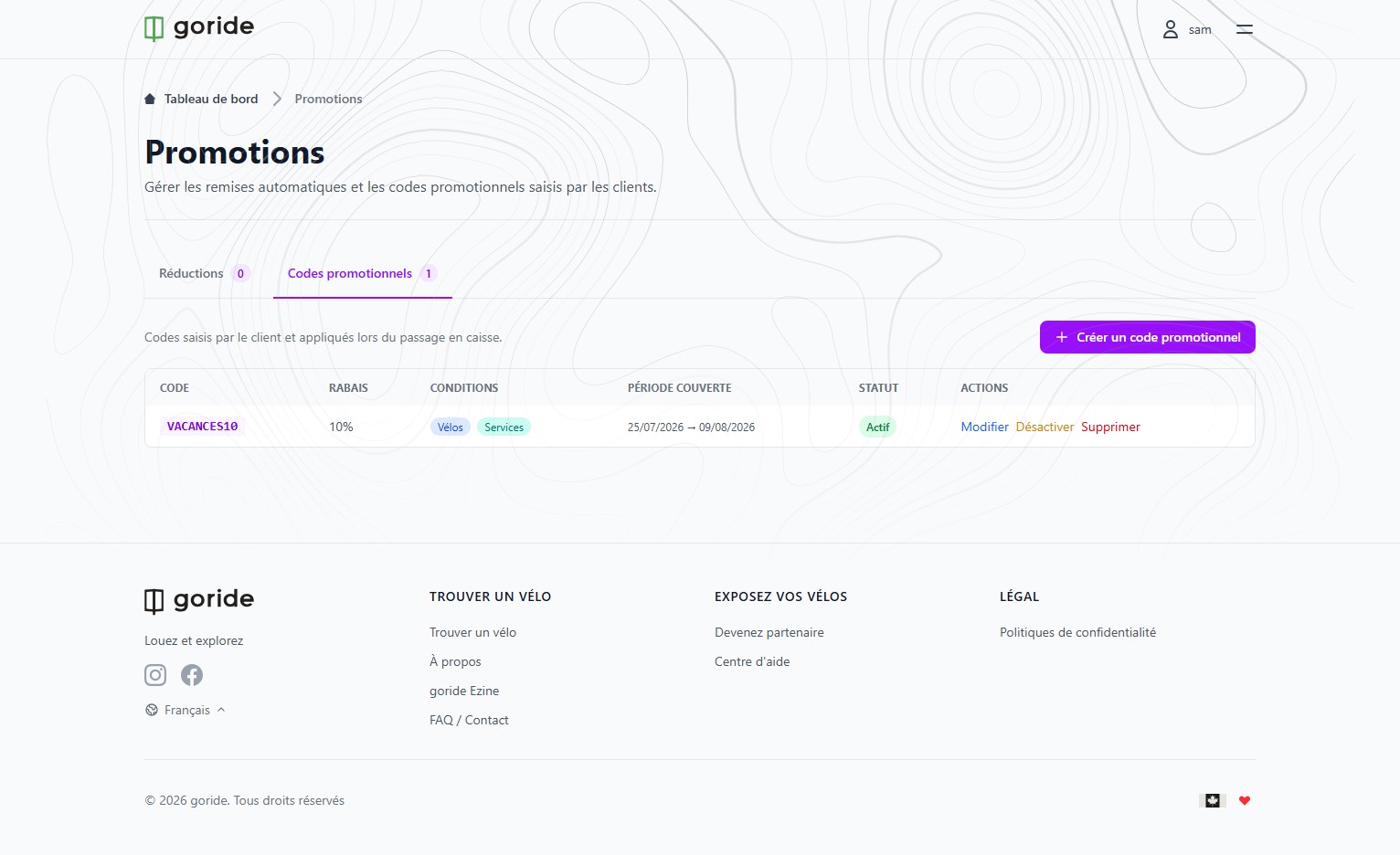
Enter a name and choose the code you will share with customers (e.g., VACANCES10 for 10% off during summer vacations).
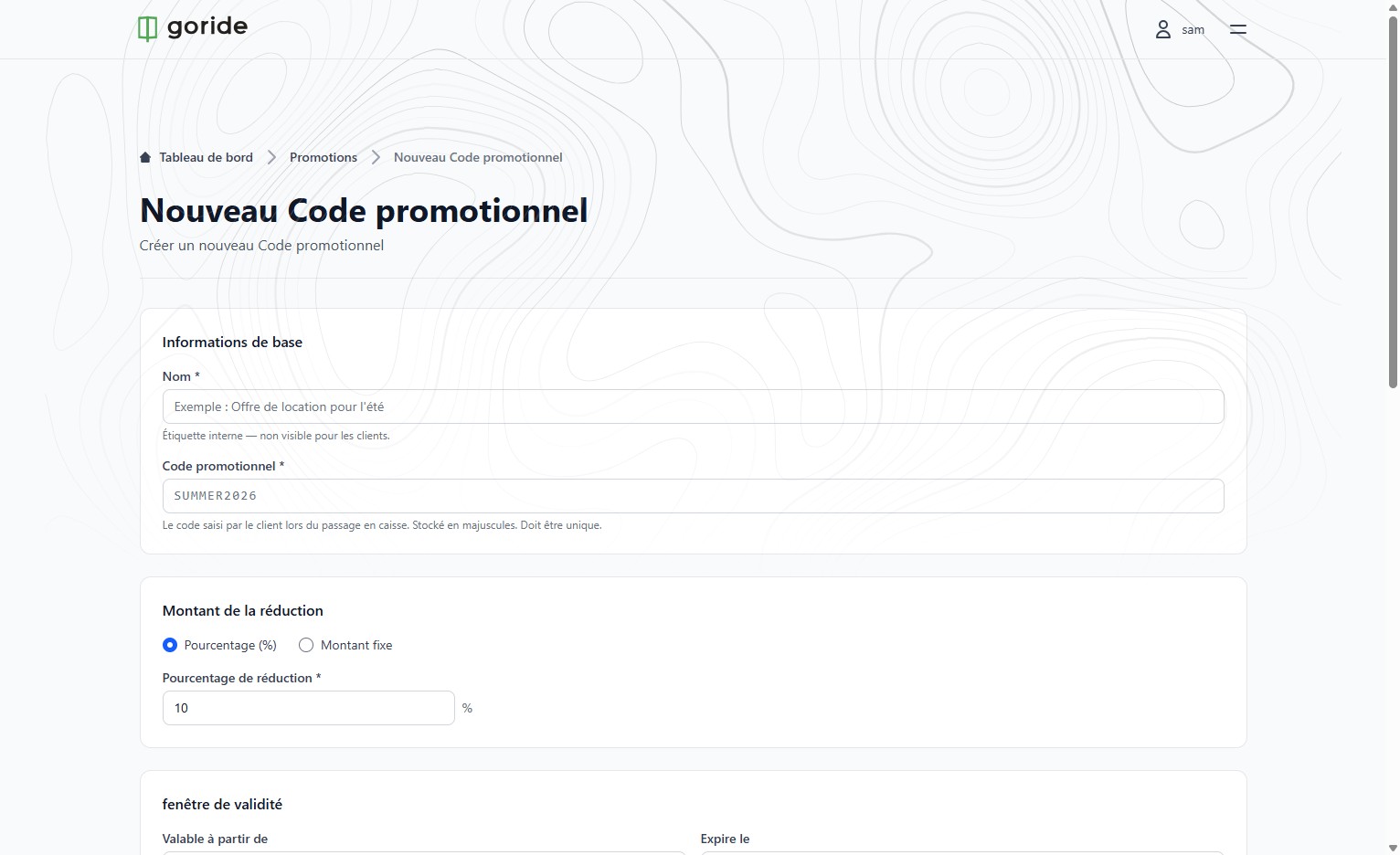
Step 6 — Set the Validity Dates
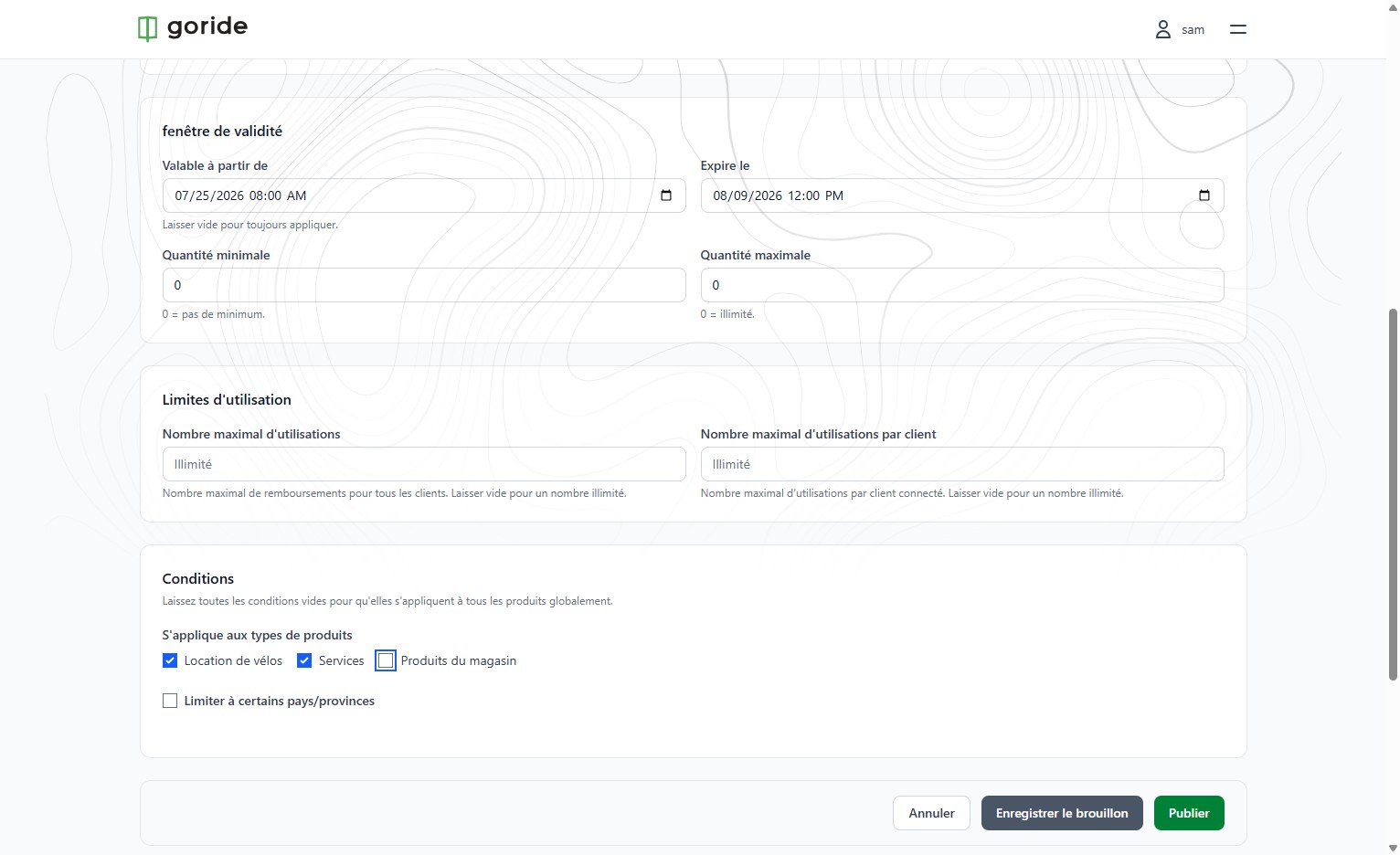
Indicate between which dates this code will be valid. Dates refer to the reservation date (when the bike will be used), not the transaction date.
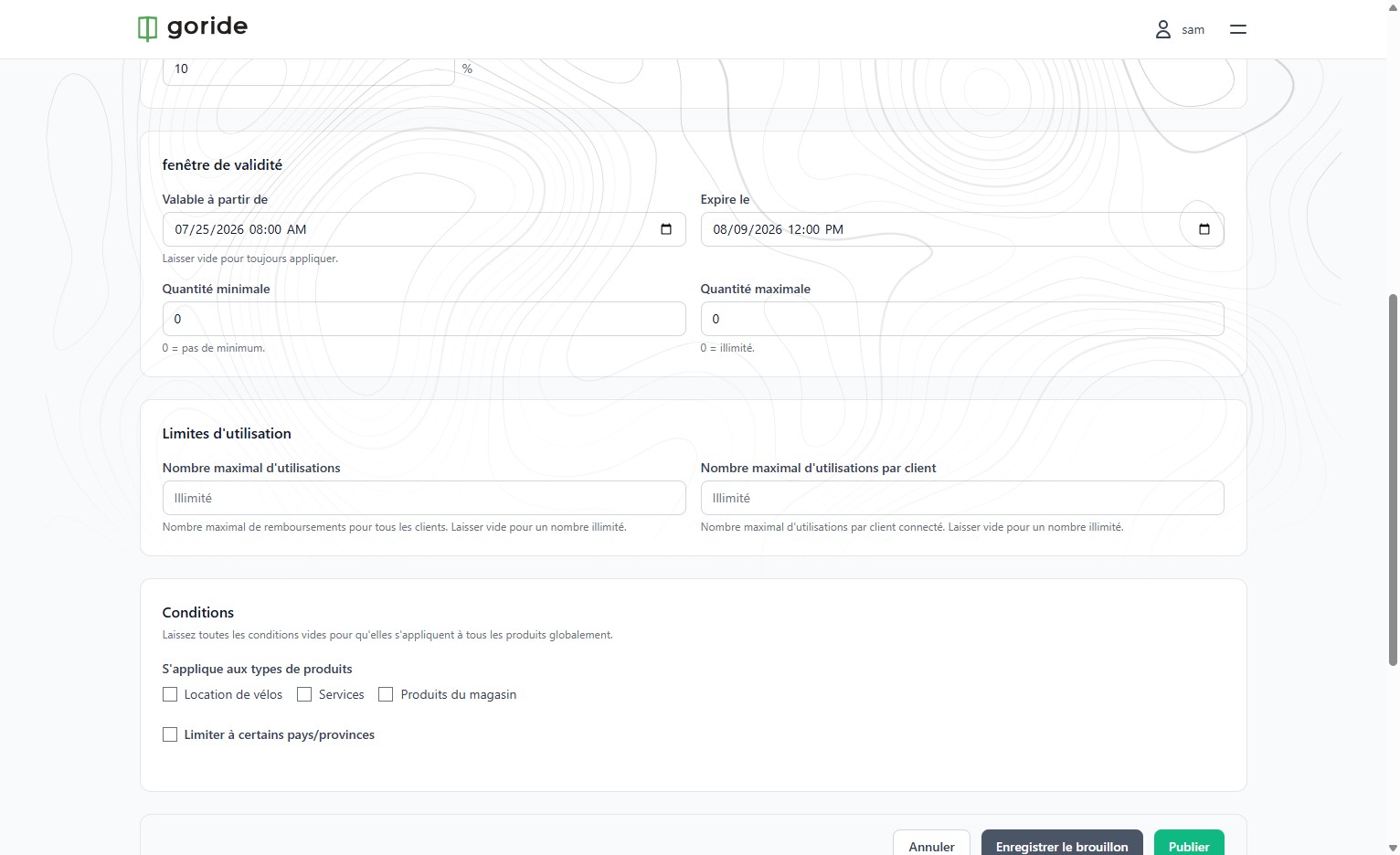
Step 7 — Choose Product Categories
Select which product categories this code applies to. We recommend choosing all 3.
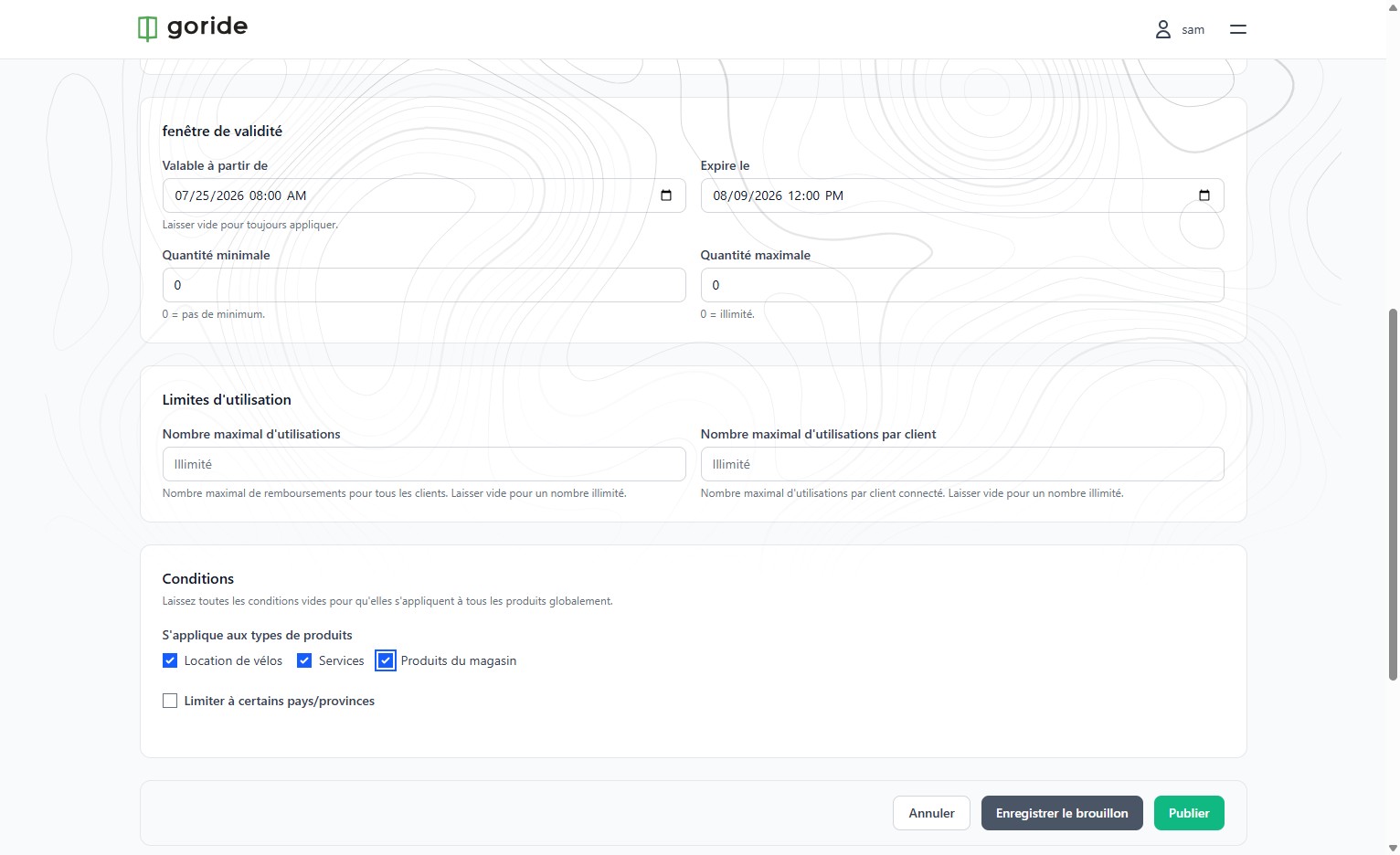
Step 8 — Publish the Code
Click "Publier" to make the promotional code live.
Step 9 — Confirm Activation
Your promo code is now active and visible in your dashboard.
Promo Code Applied at Checkout
At checkout, when a client inputs the code (e.g., VACANCES10), a 10% rebate is automatically applied to the rental price.