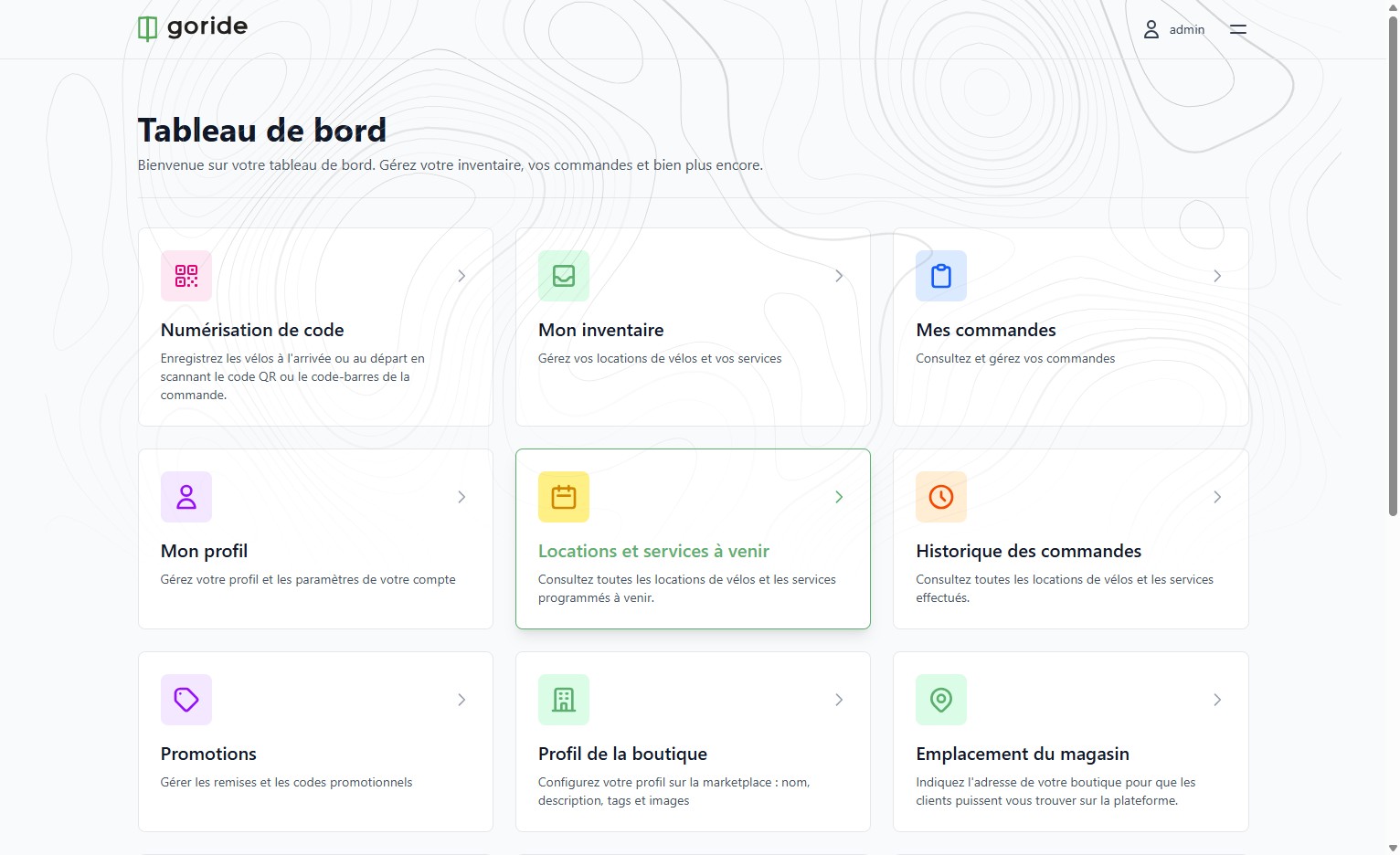
Step 1 — Go to Your Dashboard
Log in and navigate to your GoRide merchant dashboard.
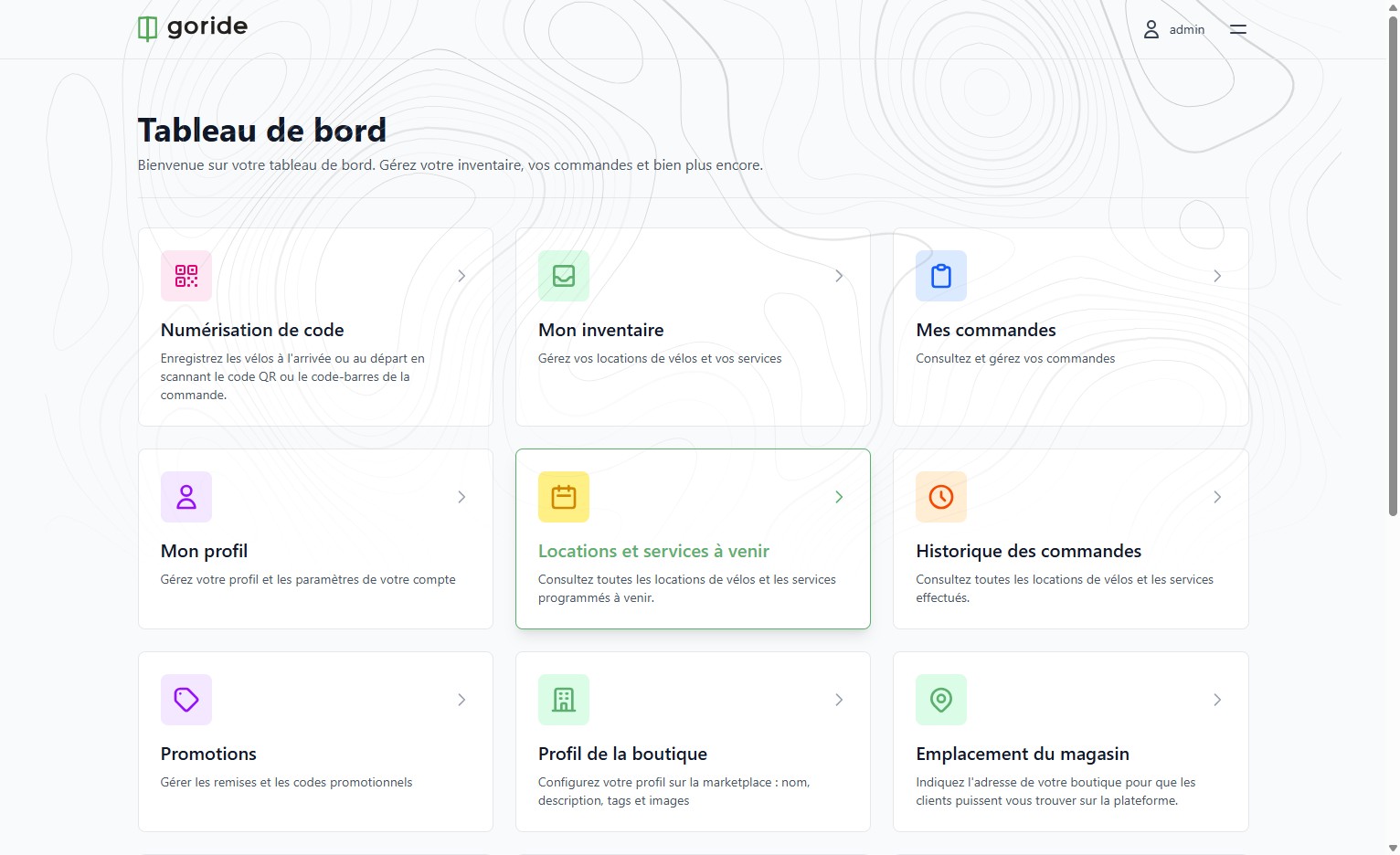
Step 2 — Open Upcoming Rentals
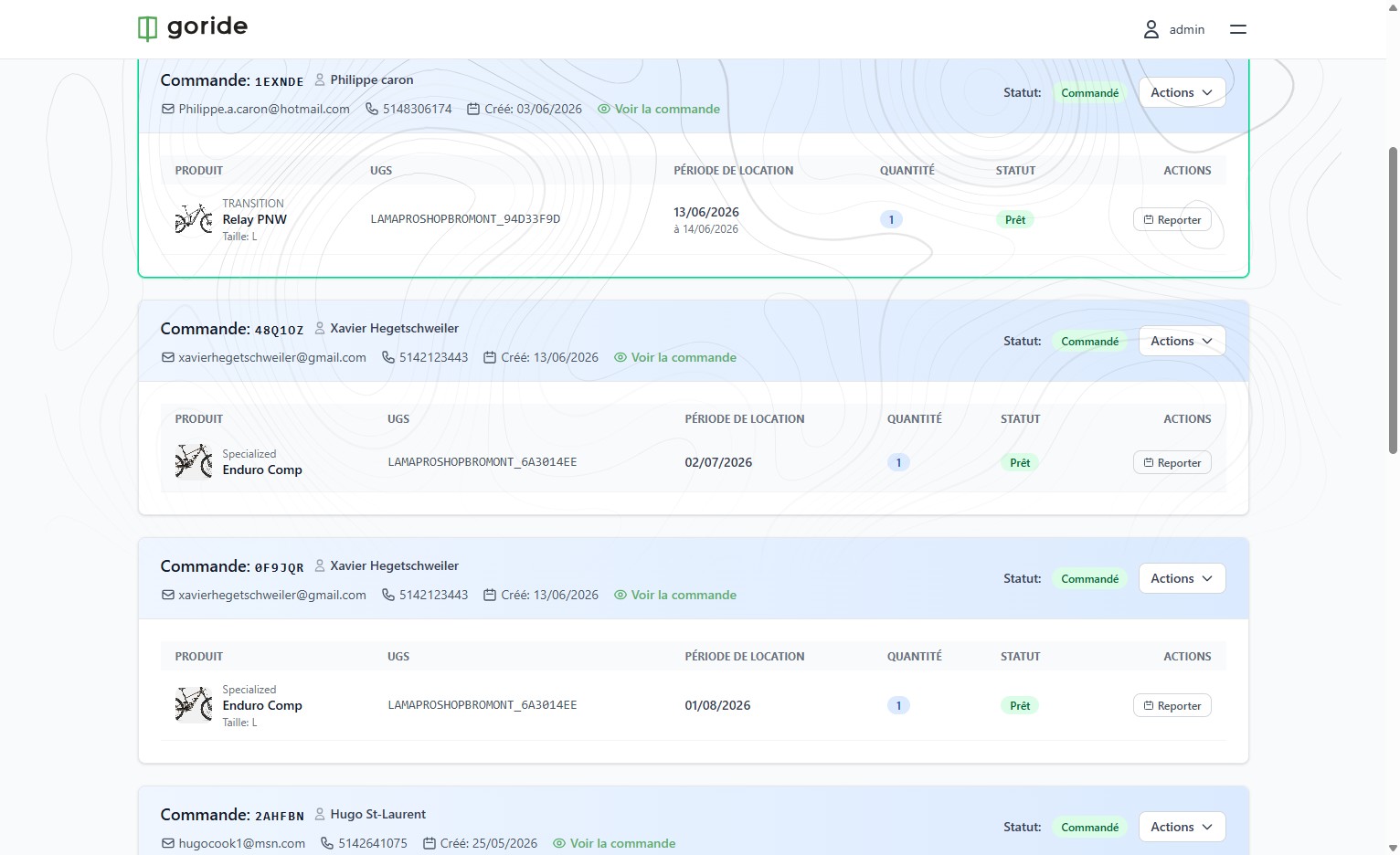
Click "Locations et services à venir" to view all upcoming customer bookings.
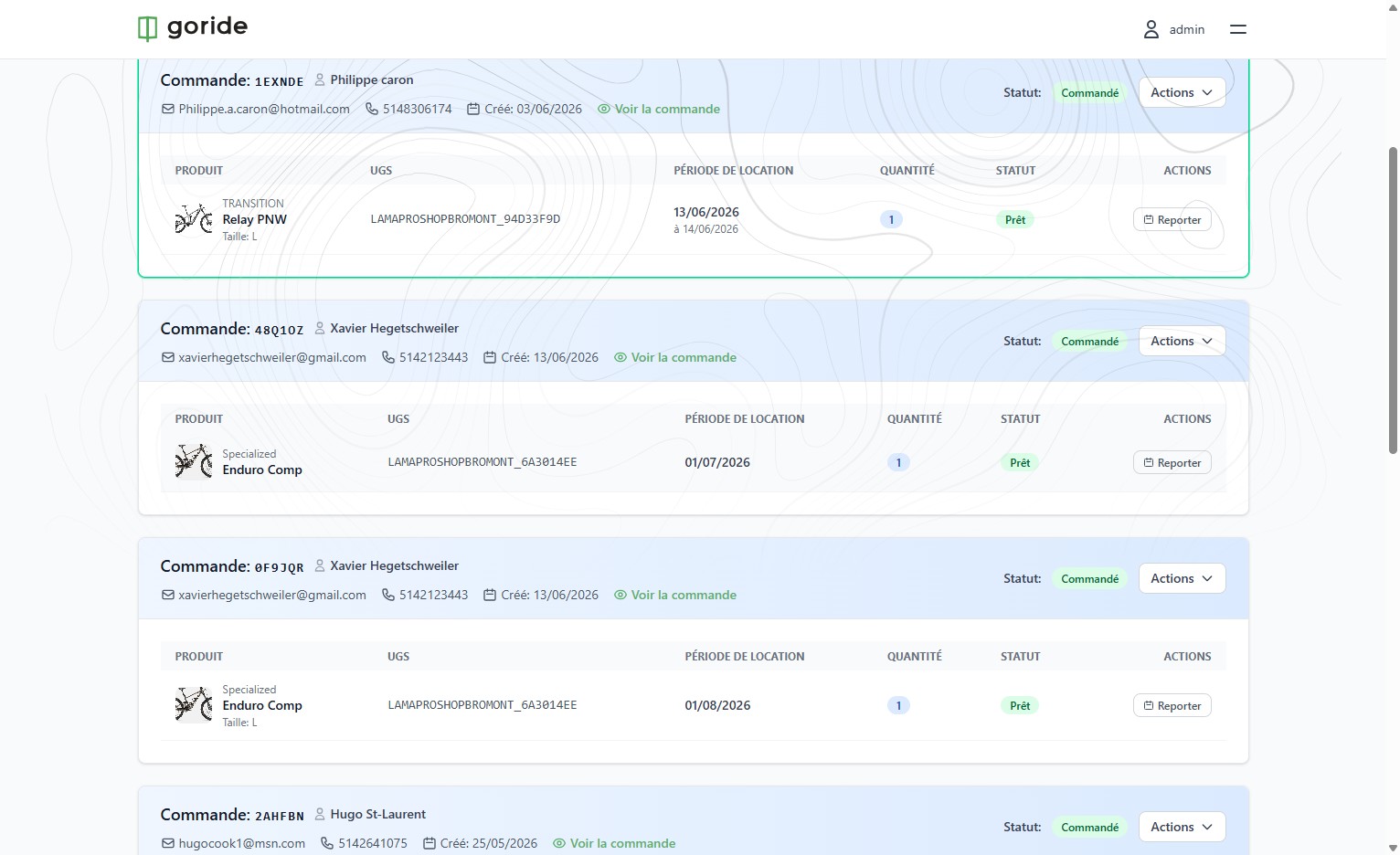
Step 3 — Click "Reporter" on the Booking to Modify
Find the booking you want to reschedule in the list and click "Reporter".
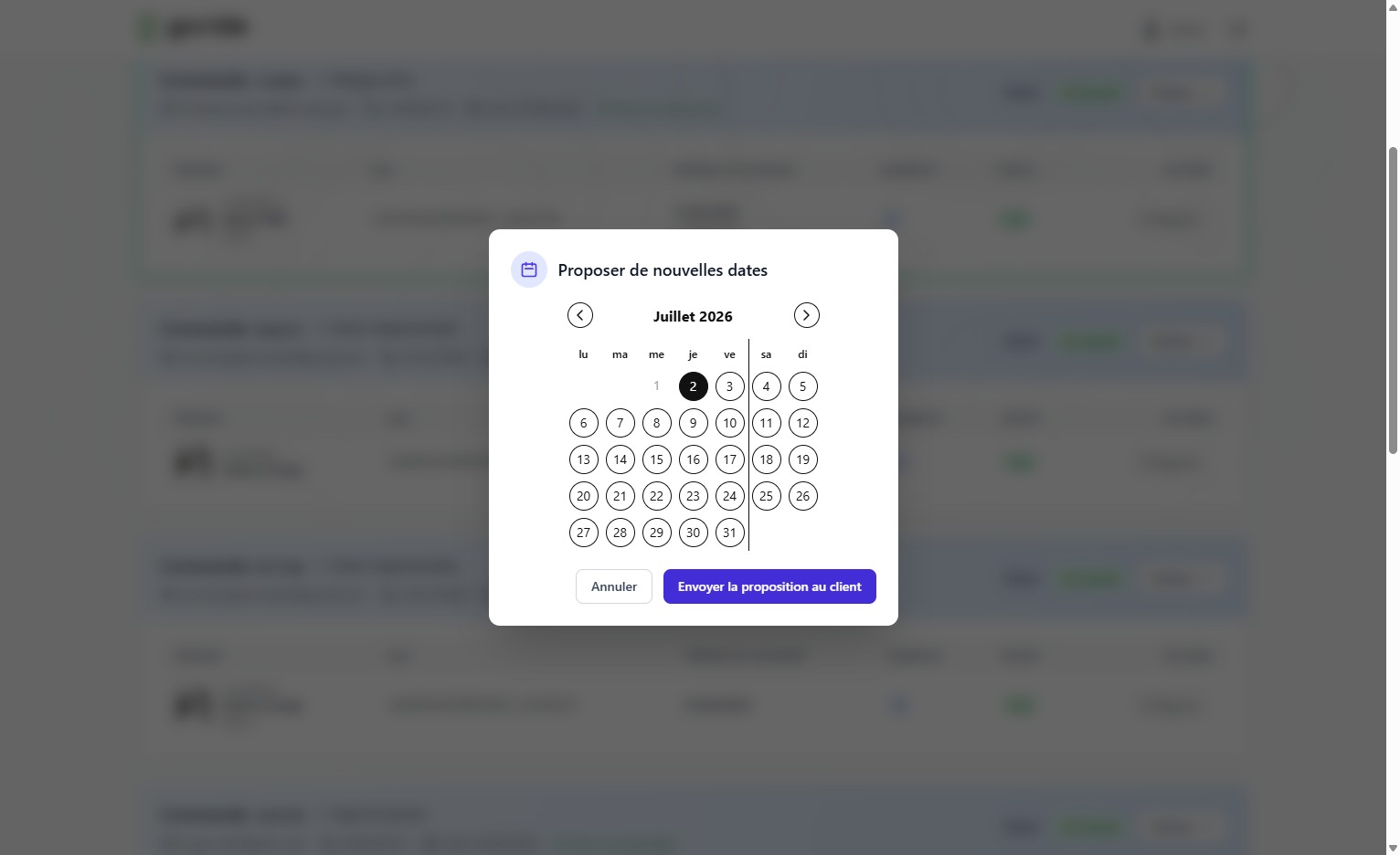
Step 4 — Select a New Date
Choose the new rental date from the calendar. Note: greyed-out dates are unavailable. ⚠️ Important — the rental duration cannot be changed here. To shorten a booking, the rider must cancel and rebook. To extend it, they should book the same bike for the additional days.
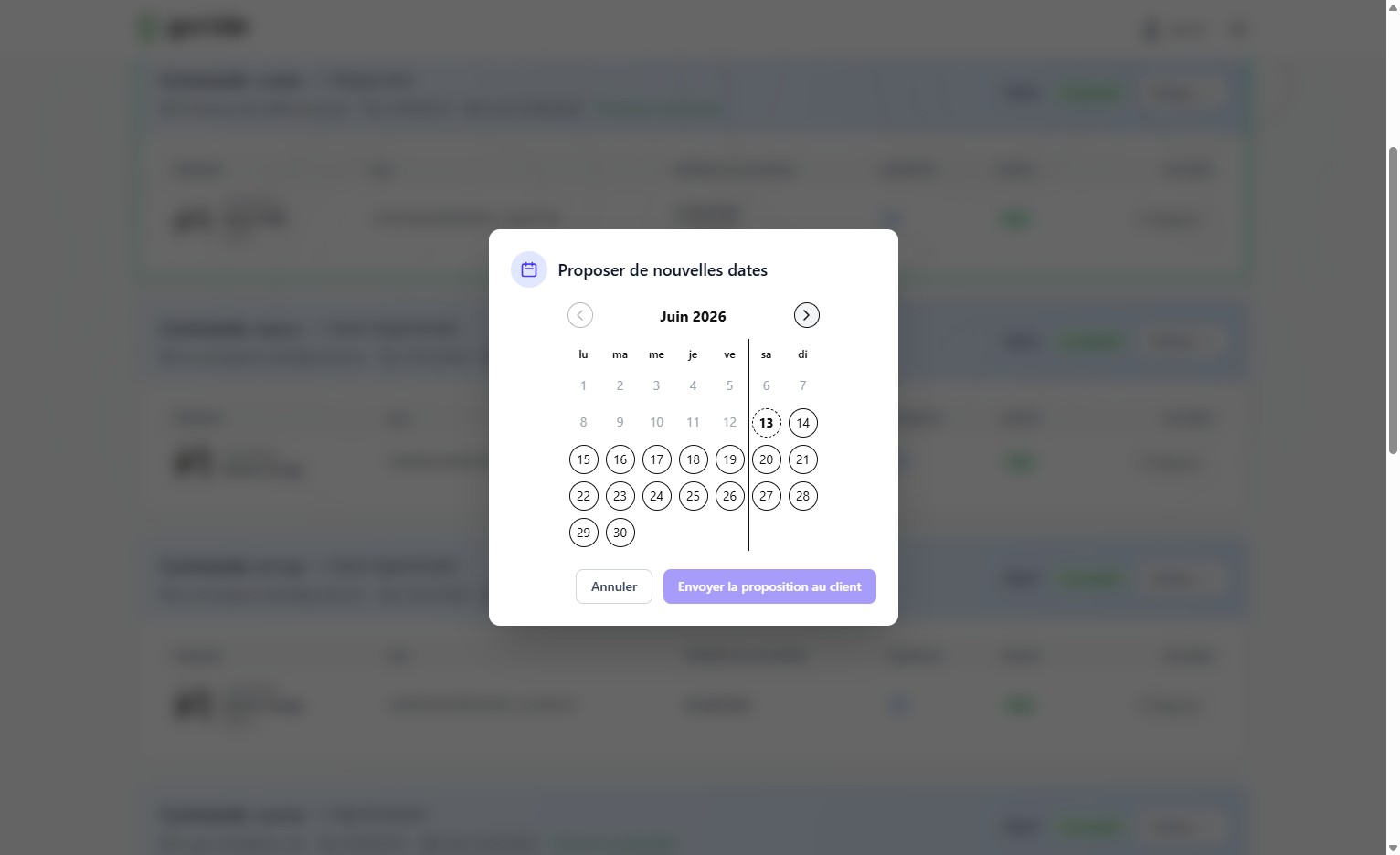
Step 5 — Send the Proposal to the Customer
Click "Envoyer la proposition au client" to notify the rider of the proposed new dates.
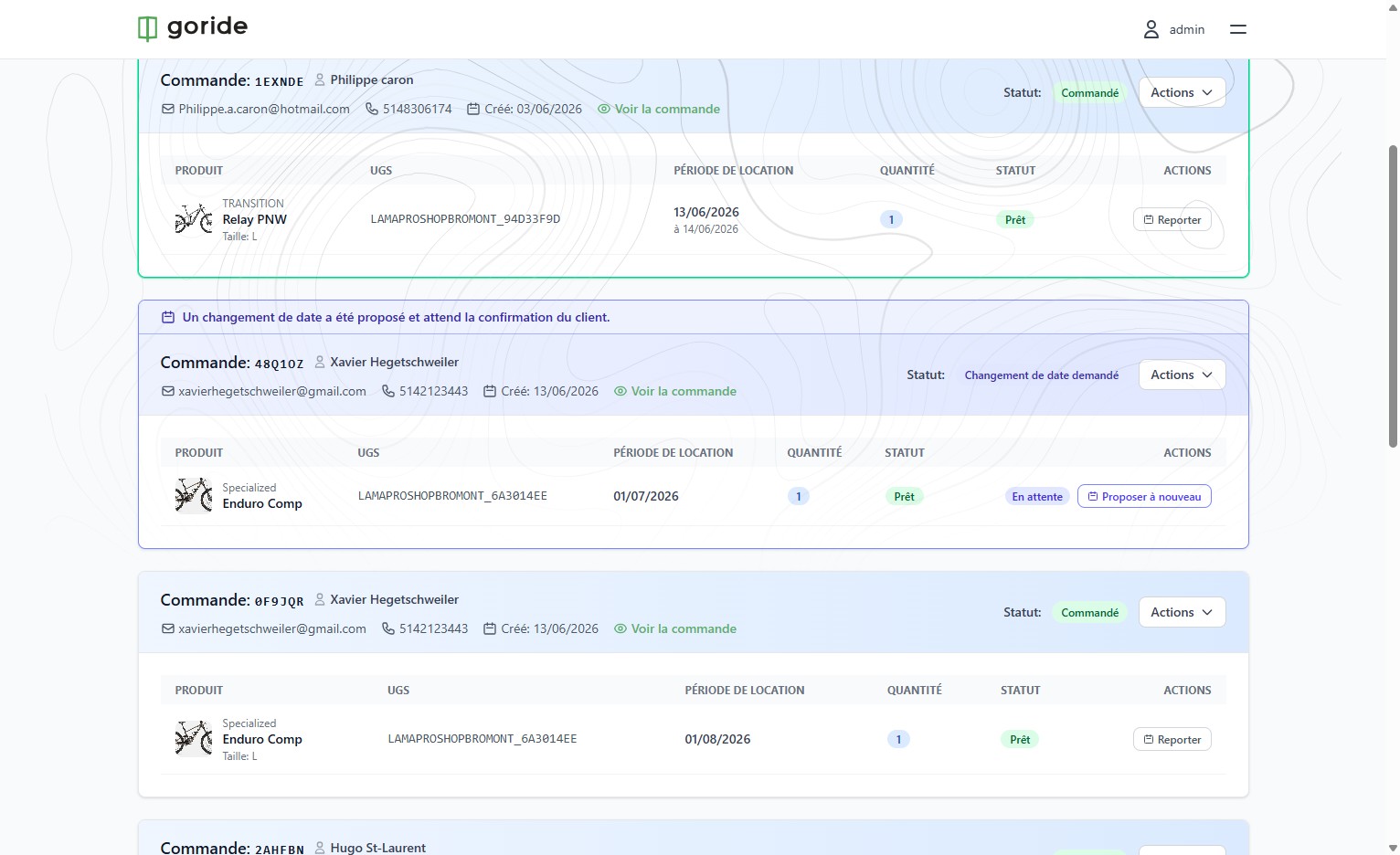
Step 6 — Proposal Pending Confirmation
The banner "Un changement de date a été proposé et attend la confirmation du client." will appear above the booking, and its status will change to "Changement de date demandé".
Step 7 — Rider Receives a Proposal Email
The customer receives an email with the proposed new dates and a button to accept or decline.
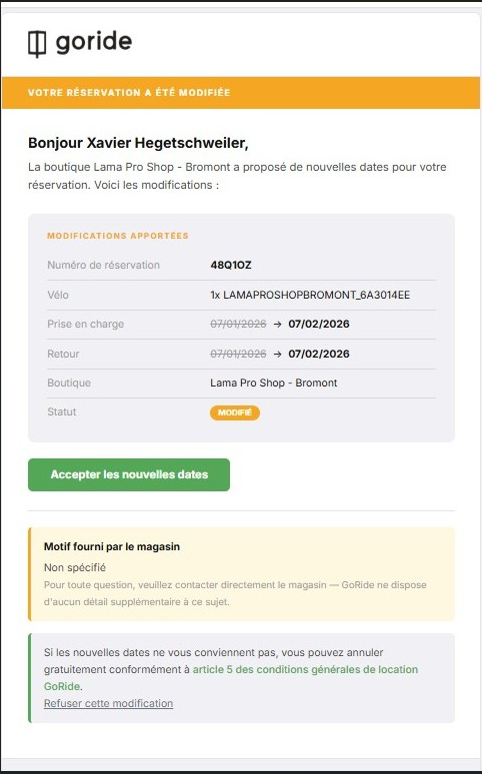
Step 8 — Rider Accepts the New Dates
If the rider clicks "Accepter les nouvelles dates", the booking is updated automatically.
Step 9 — You Receive a Confirmation Email
You will receive a notification email and the new dates will appear in your dashboard.
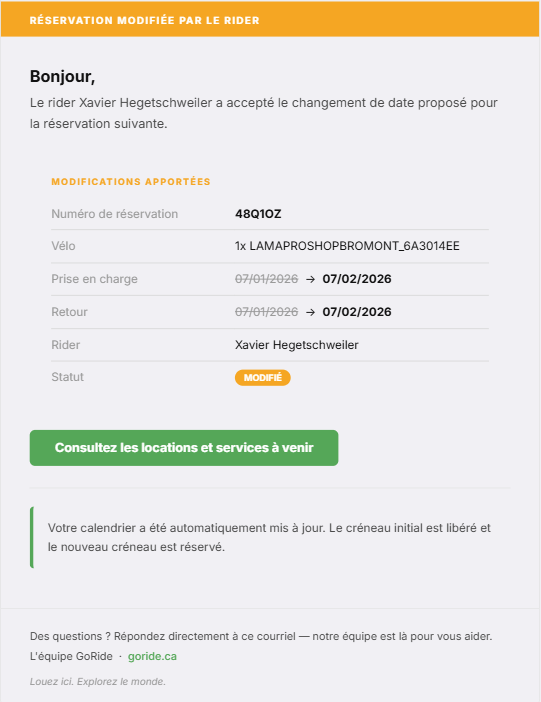
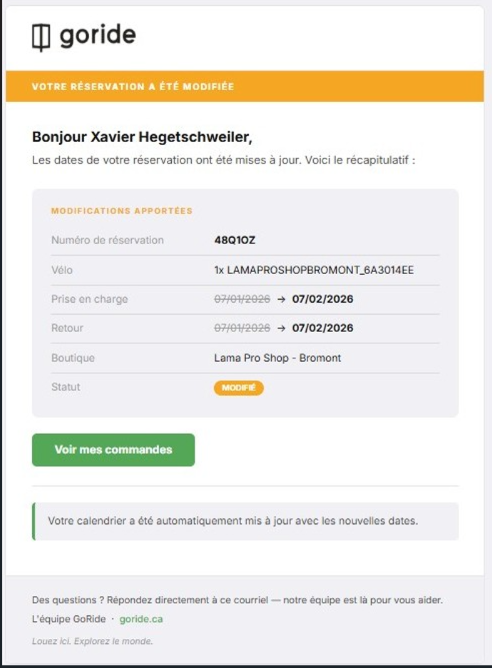
Step 10 — Rider Receives a Confirmation Email
The rider also receives a confirmation email showing the updated booking dates.
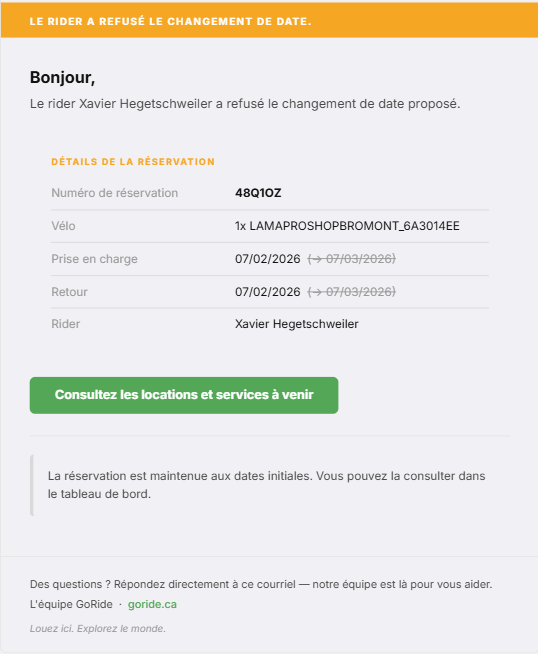
Rider Refusal — Alternative Scenario
If the rider declines the proposal, you will receive a notification email and the original dates will remain unchanged in your dashboard.
 \
\