Step 1 — Go to Your Dashboard
Log in and navigate to your GoRide merchant dashboard.
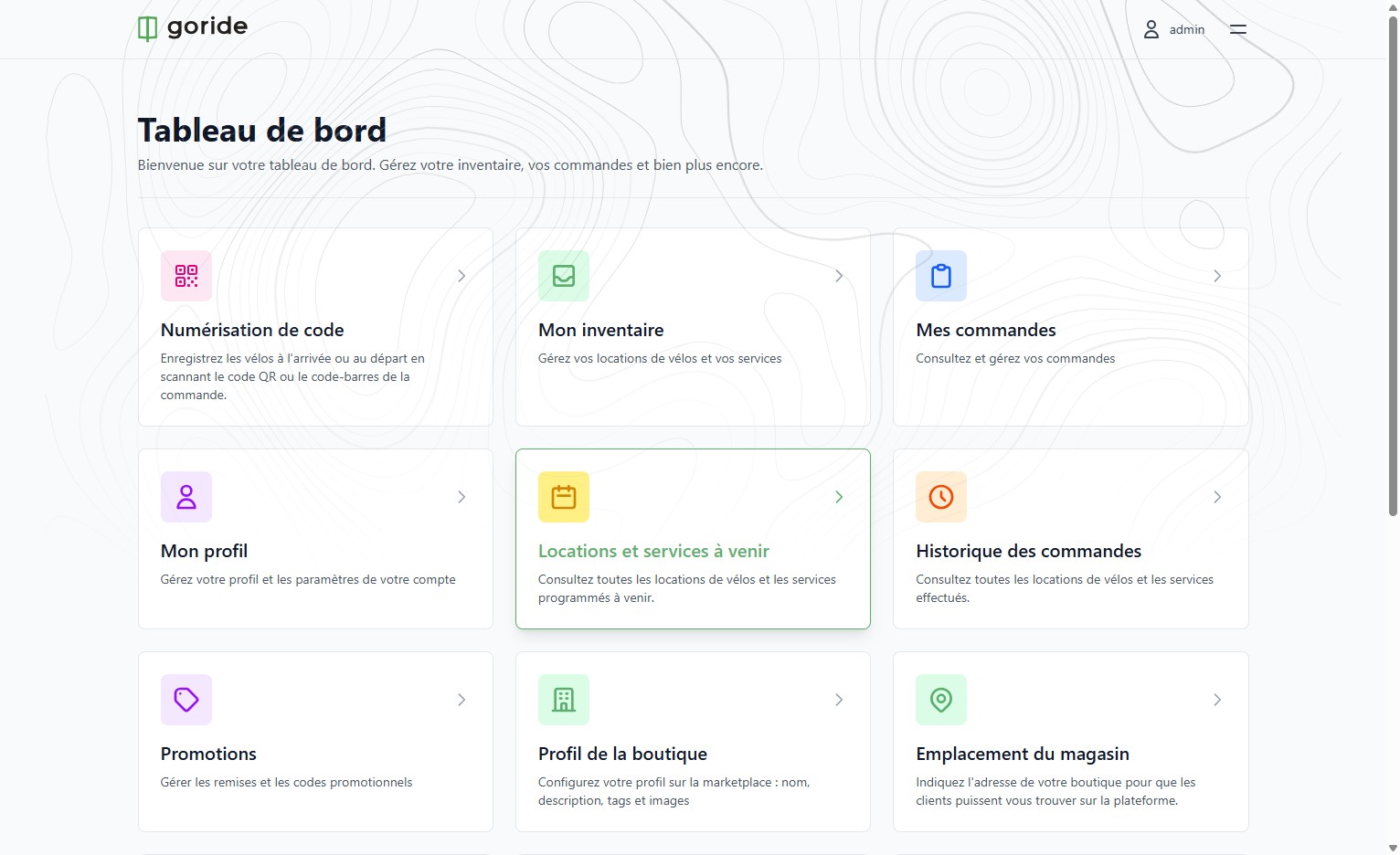
Step 2 — Open Upcoming Rentals
Click "Locations et services à venir" to view all upcoming customer bookings.
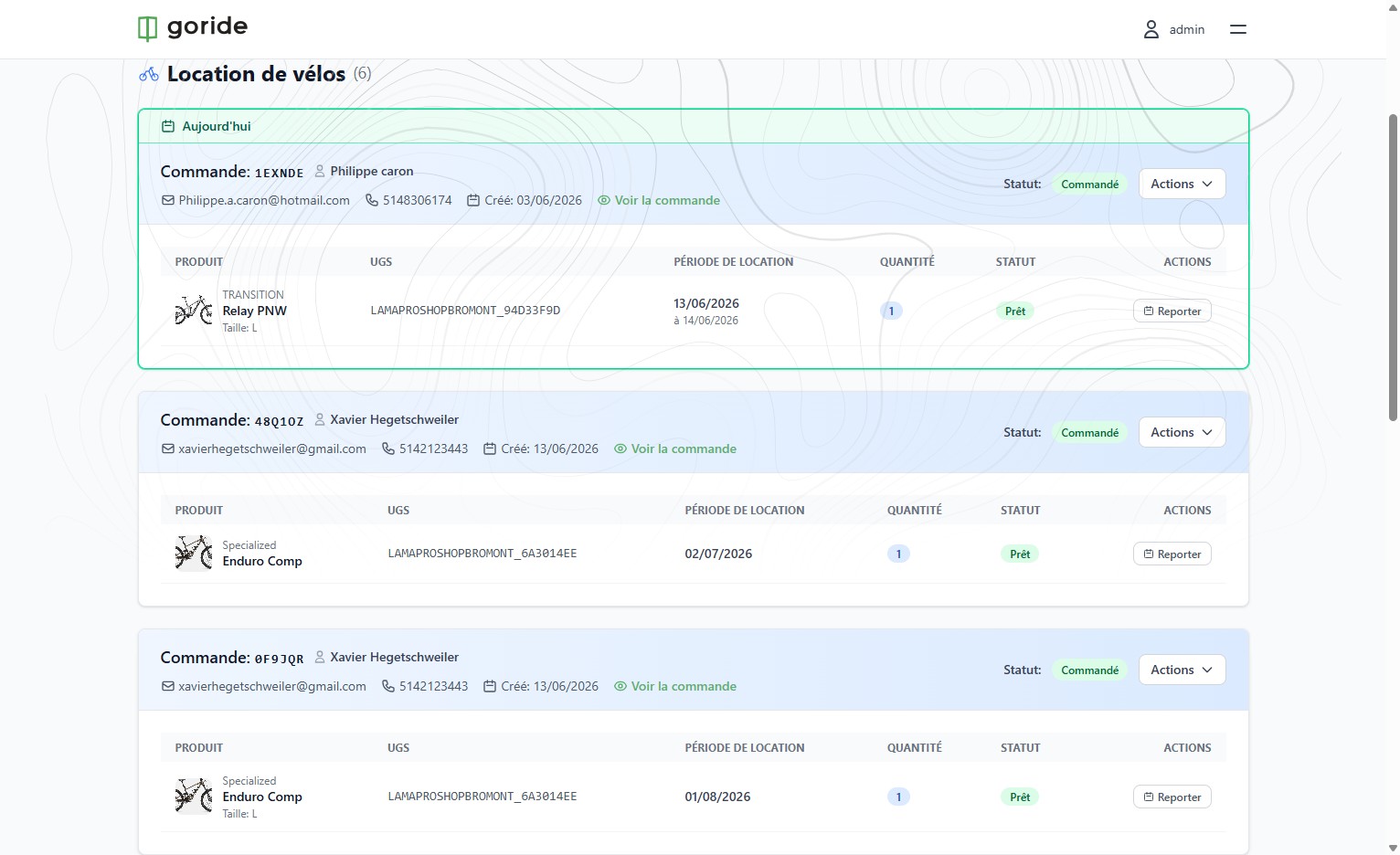
Step 3 — Find the Booking
Locate the order in the list. The order ID, rider name, email, and phone number are visible. For more details such as the rider's address, click "Voir la commande".
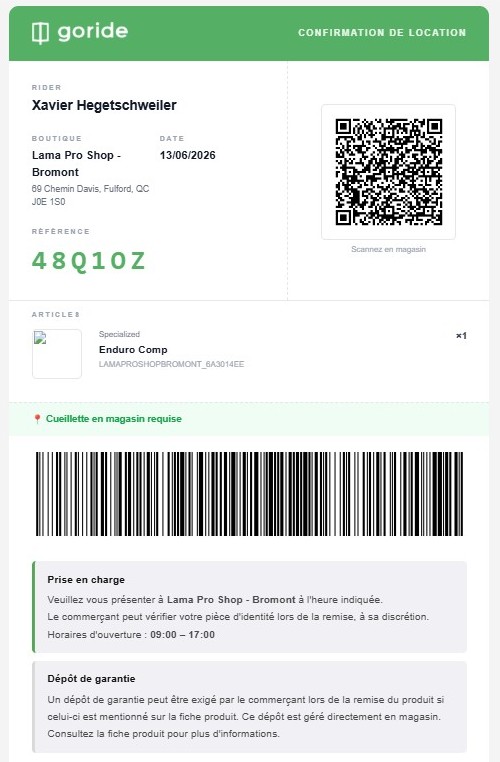
Step 4 — Verify Rider Identity
The rider will have received an order confirmation email containing their reference code. Use it to double-check their identity at pickup.
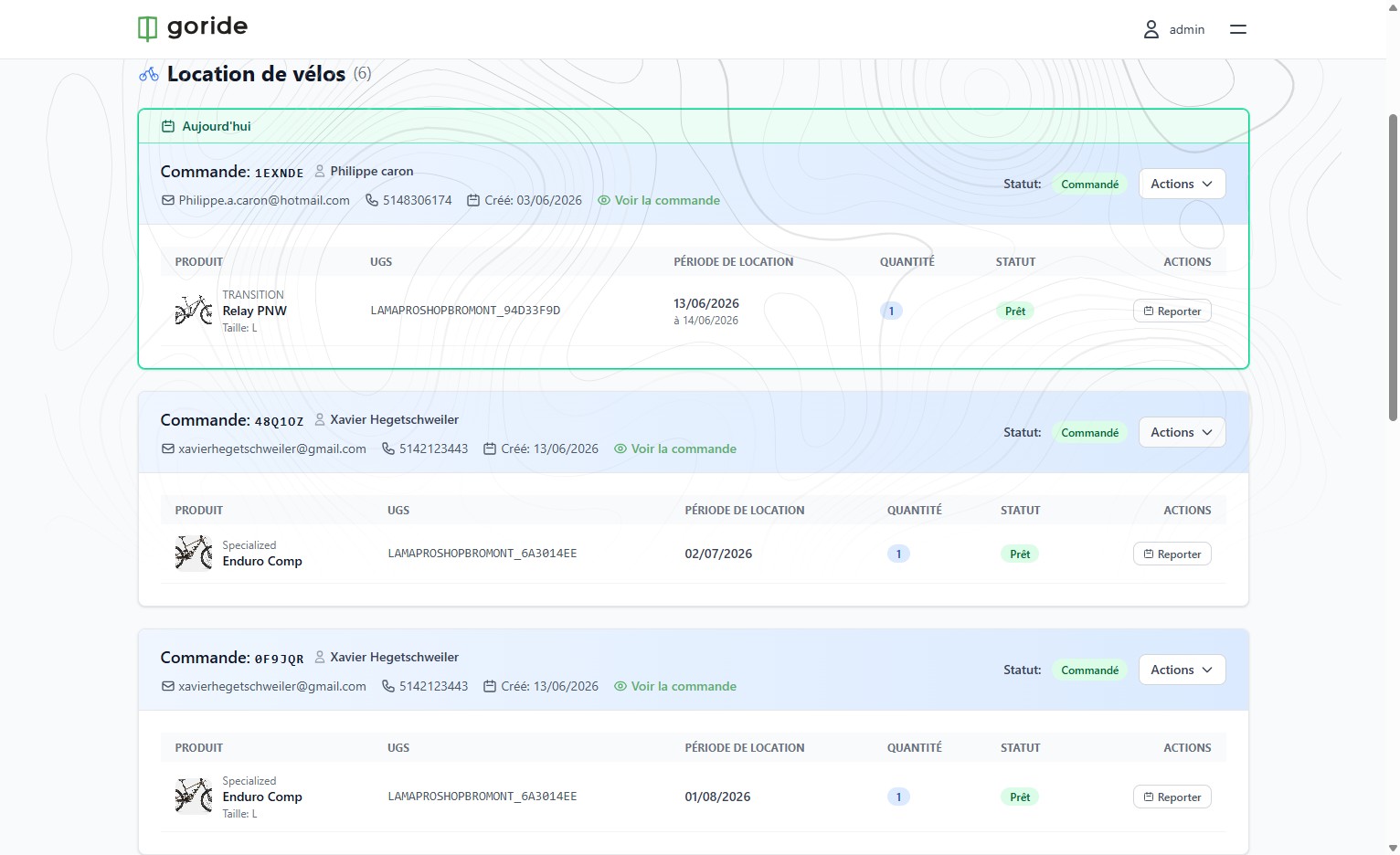
Step 5 — Open the Actions Menu
Click "Actions" on the booking to reveal the available options.
Step 6 — View Available Actions
From the dropdown, you can access "Enregistrement manuel", "Billet de ramassage", "Renvoyer l'e-mail de confirmation", or cancel the order.
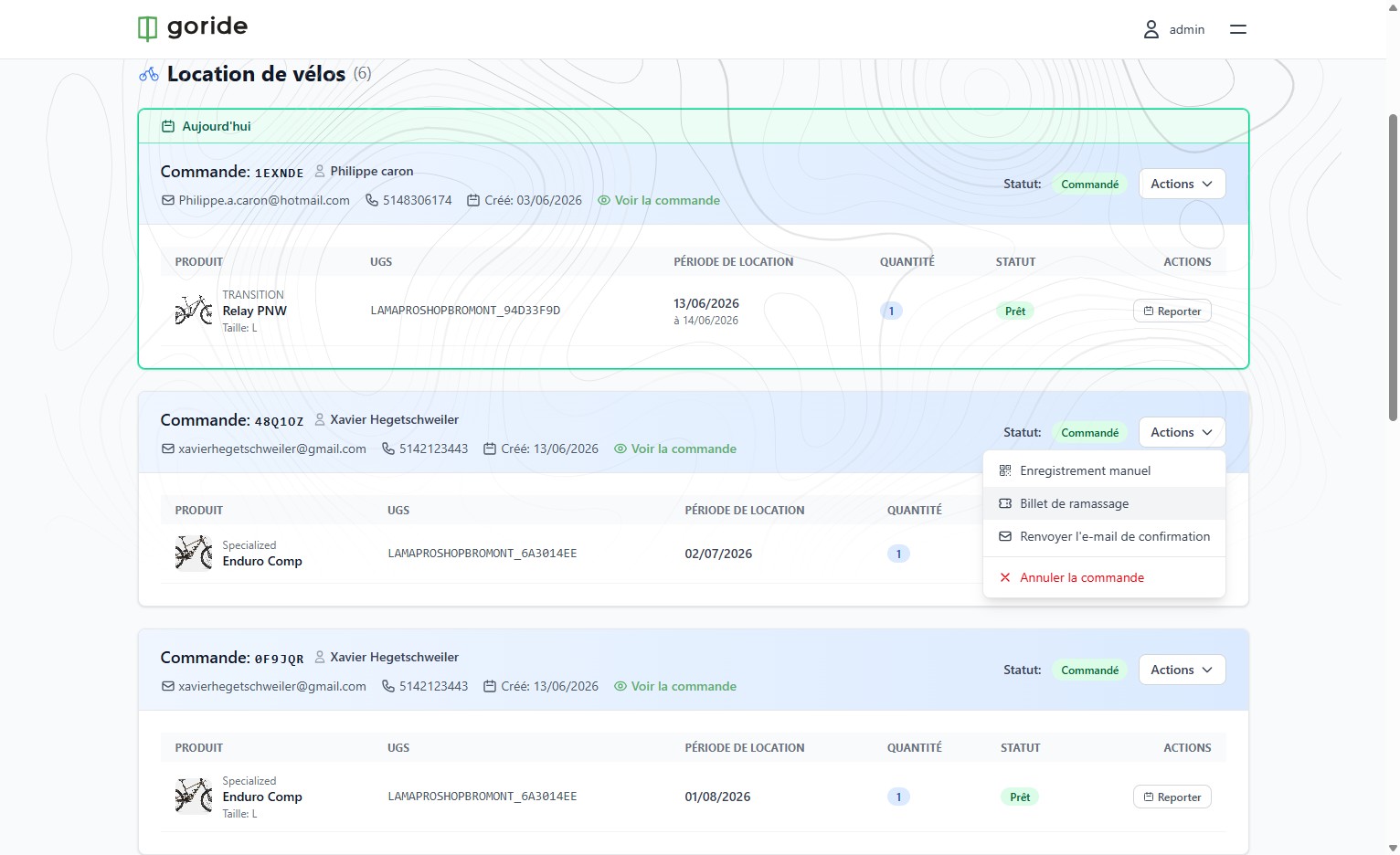
Step 7 — View the Confirmation Code
Click "Billet de ramassage" to visualize the rider's confirmation code, QR code, and barcode — identical to what the rider received by email.
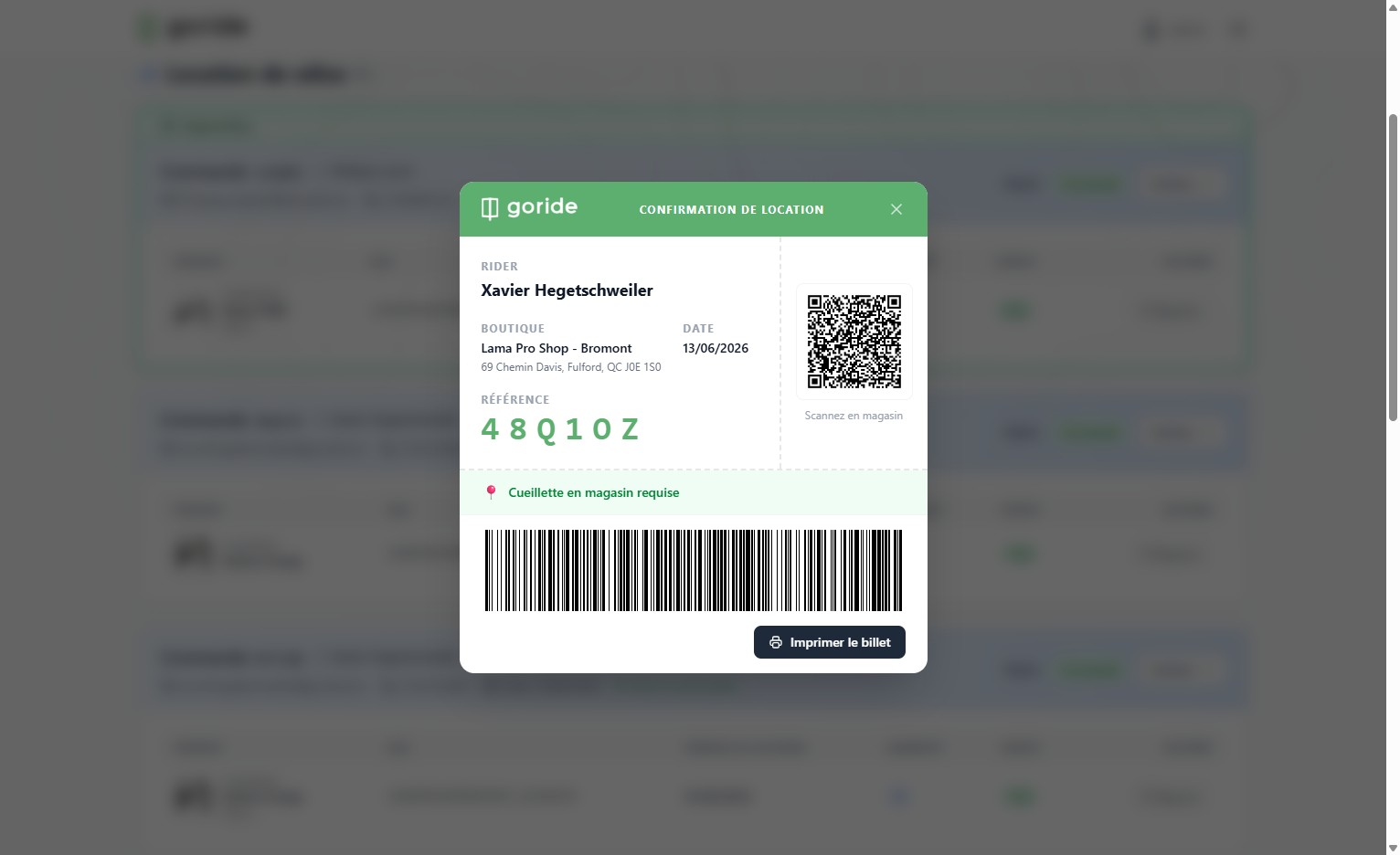
Step 8 — Print the Pickup Slip
If you wish to, Click "Imprimer le billet" to print the pickup slip for your records.
Confirming Bike Pickup
Step 9 — Click "Actions" at Pickup
When the rider is ready to leave with the bike, click "Actions" on the booking.
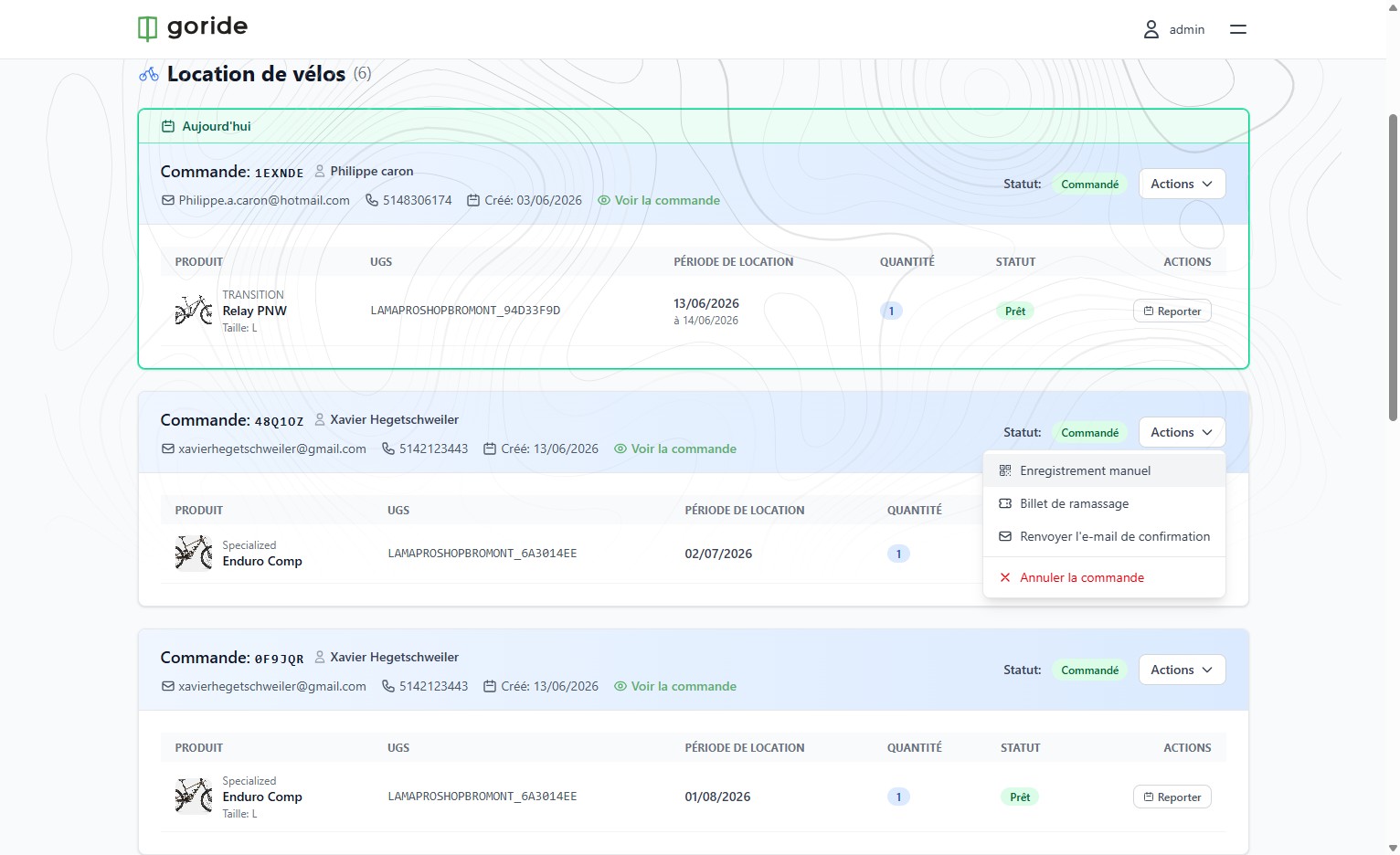
Step 10 — Click "Enregistrement manuel"
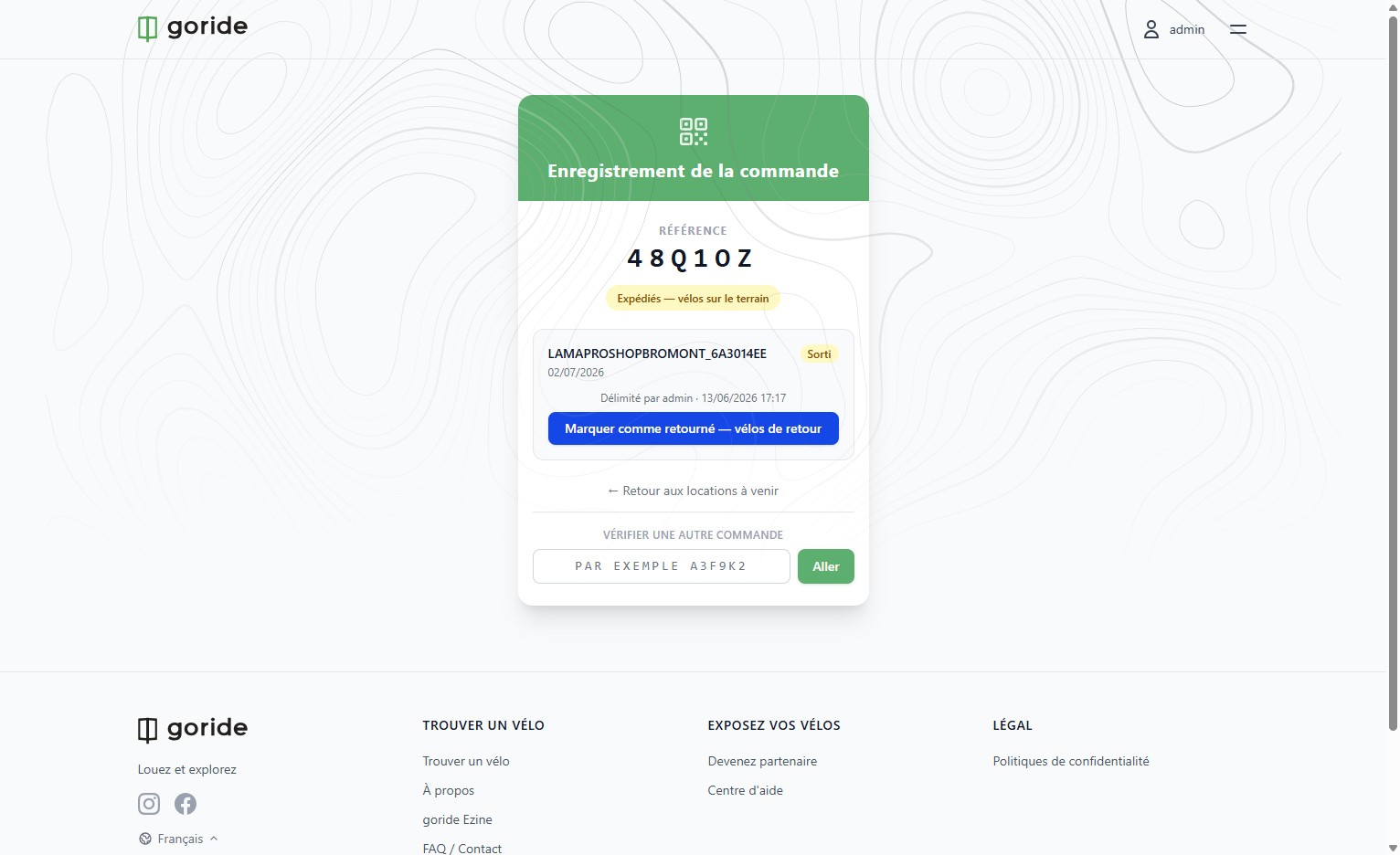
Select "Enregistrement manuel" from the dropdown, then click "Marquer comme sorti — vélos partants" to confirm the bike has left the shop.
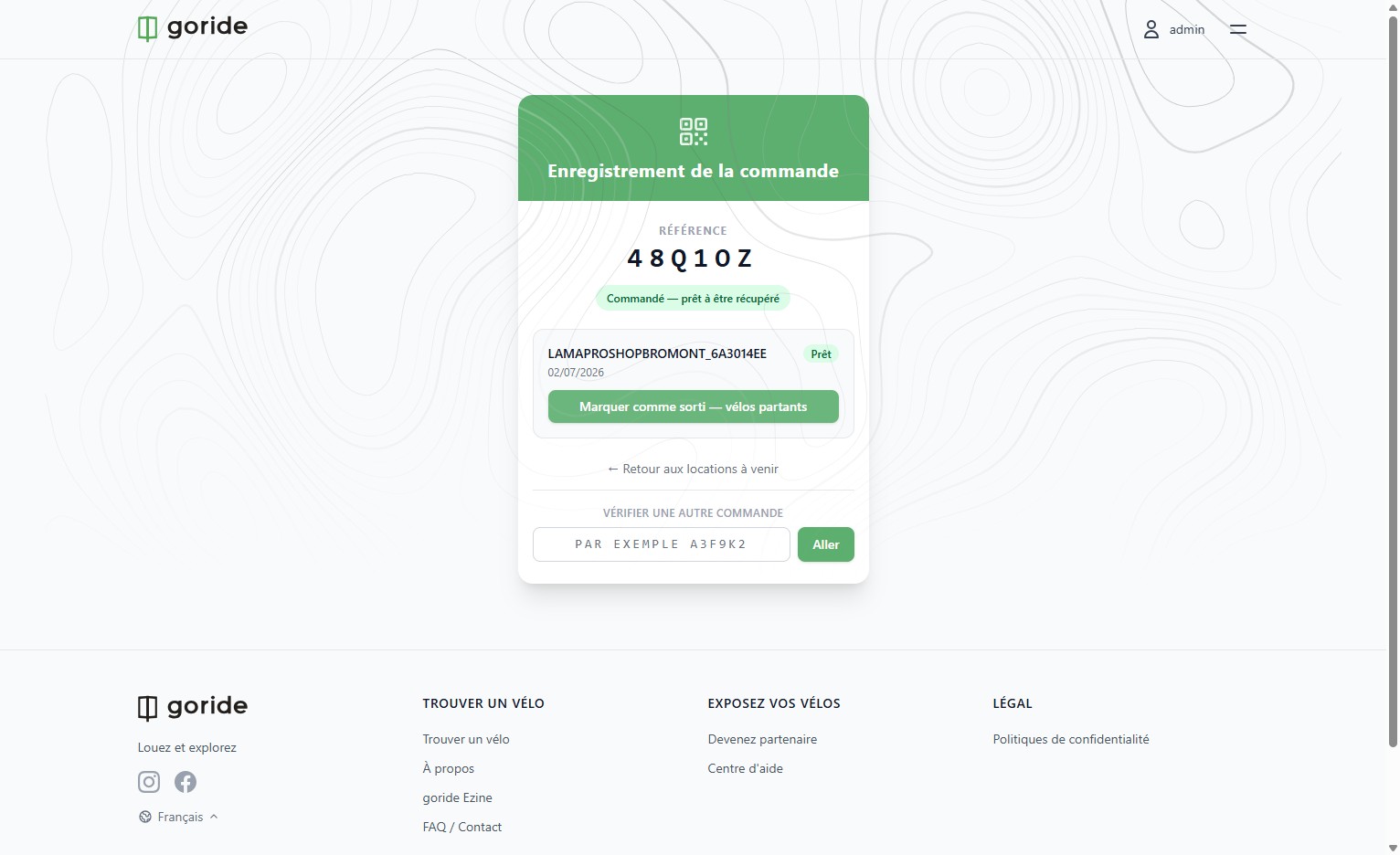
Step 11 — Status Updates to "Expédiés"
The status will change to "Expédiés — vélos sur le terrain". A timestamp is added automatically for traceability.
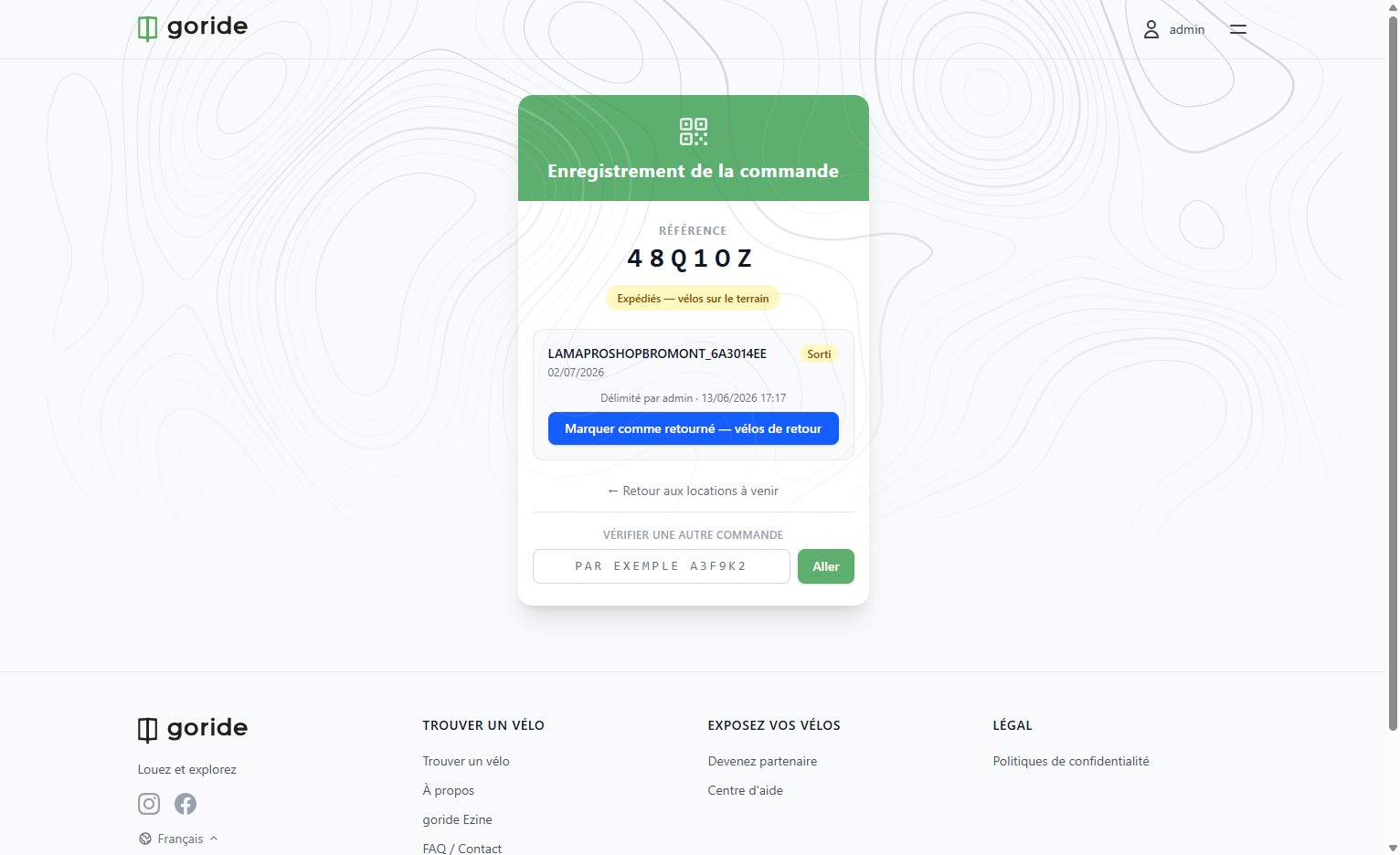
Step 12 — "Sorti" Status Visible in Bookings List
The booking list will now show "Sorti" as the item status, confirming the bike is on the trail.
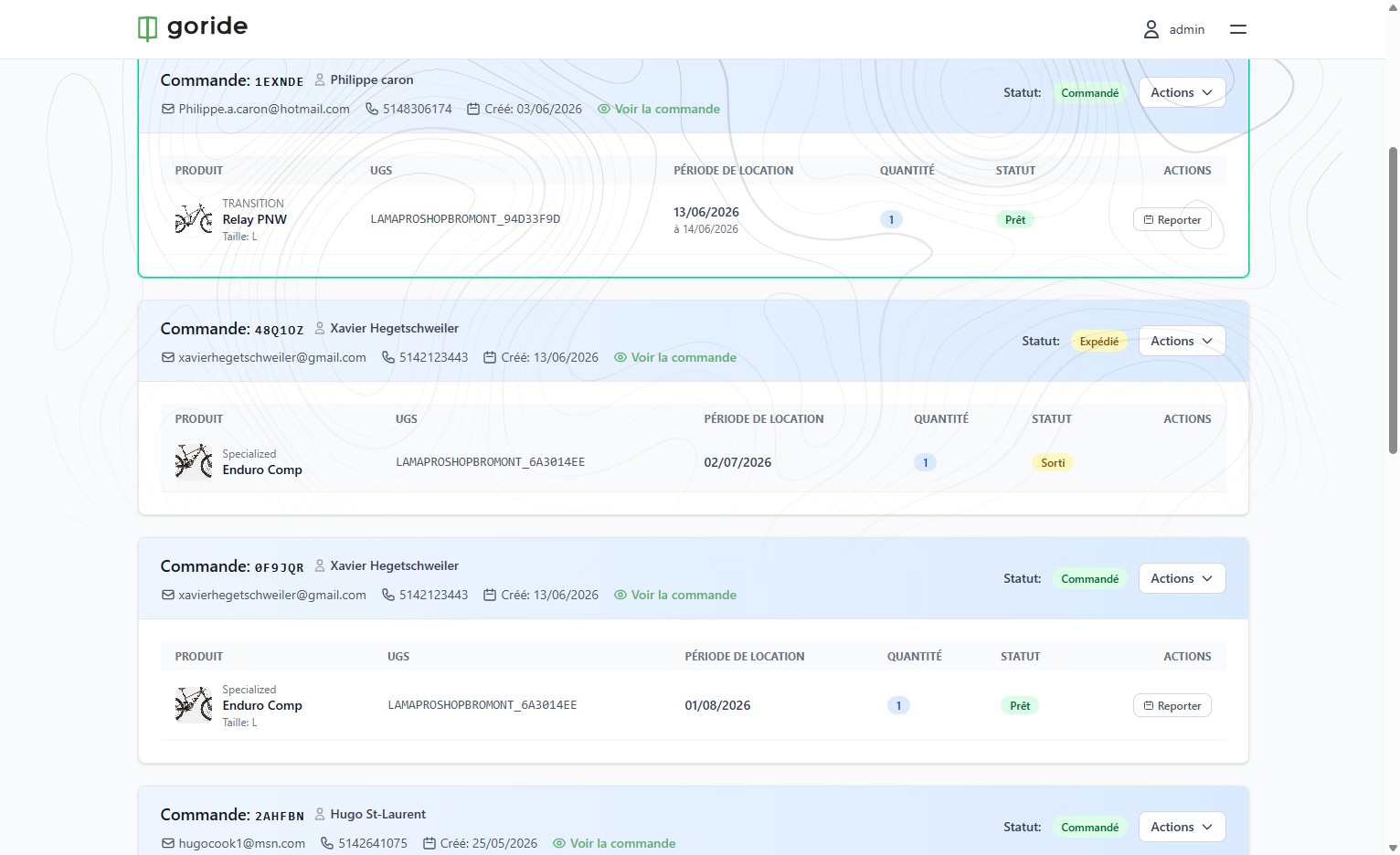
Confirming Bike Return
Step 13 — Click "Actions" at Return
When the rider brings back the bike, click "Actions" on the booking.
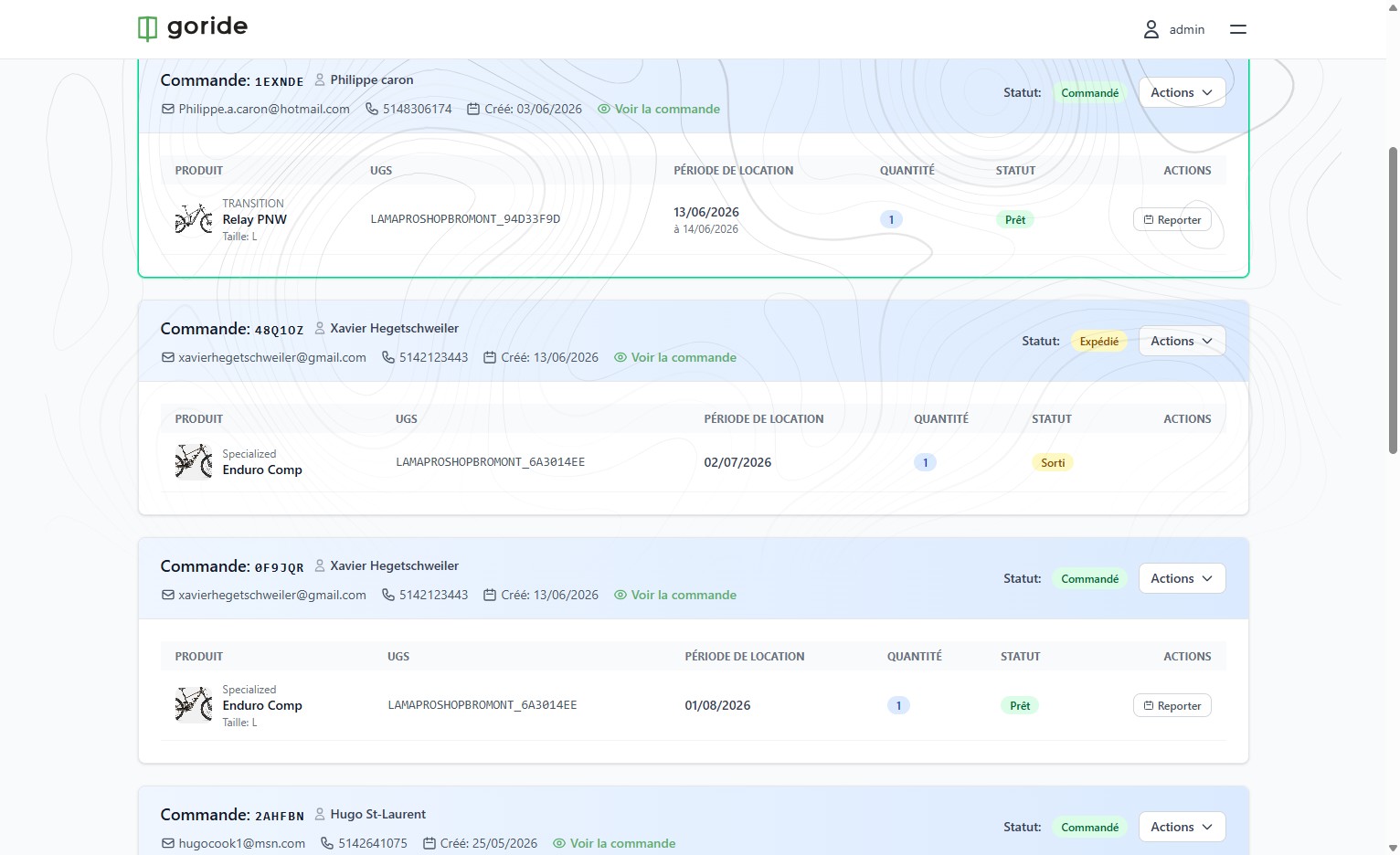
Step 14 — Click "Marquer comme retourné"
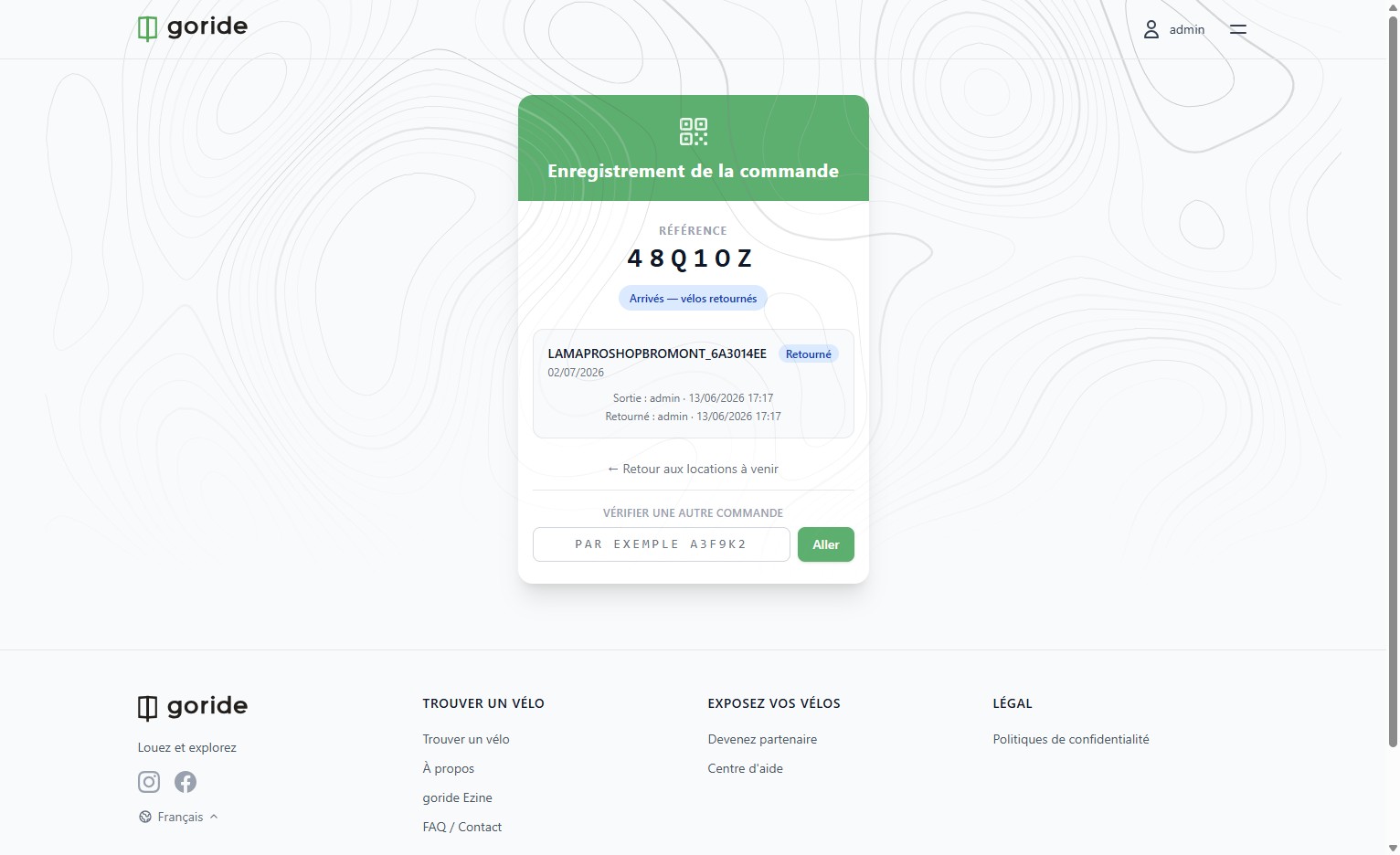
Select "Enregistrement manuel", then click "Marquer comme retourné — vélos de retour" to confirm the bike is back.
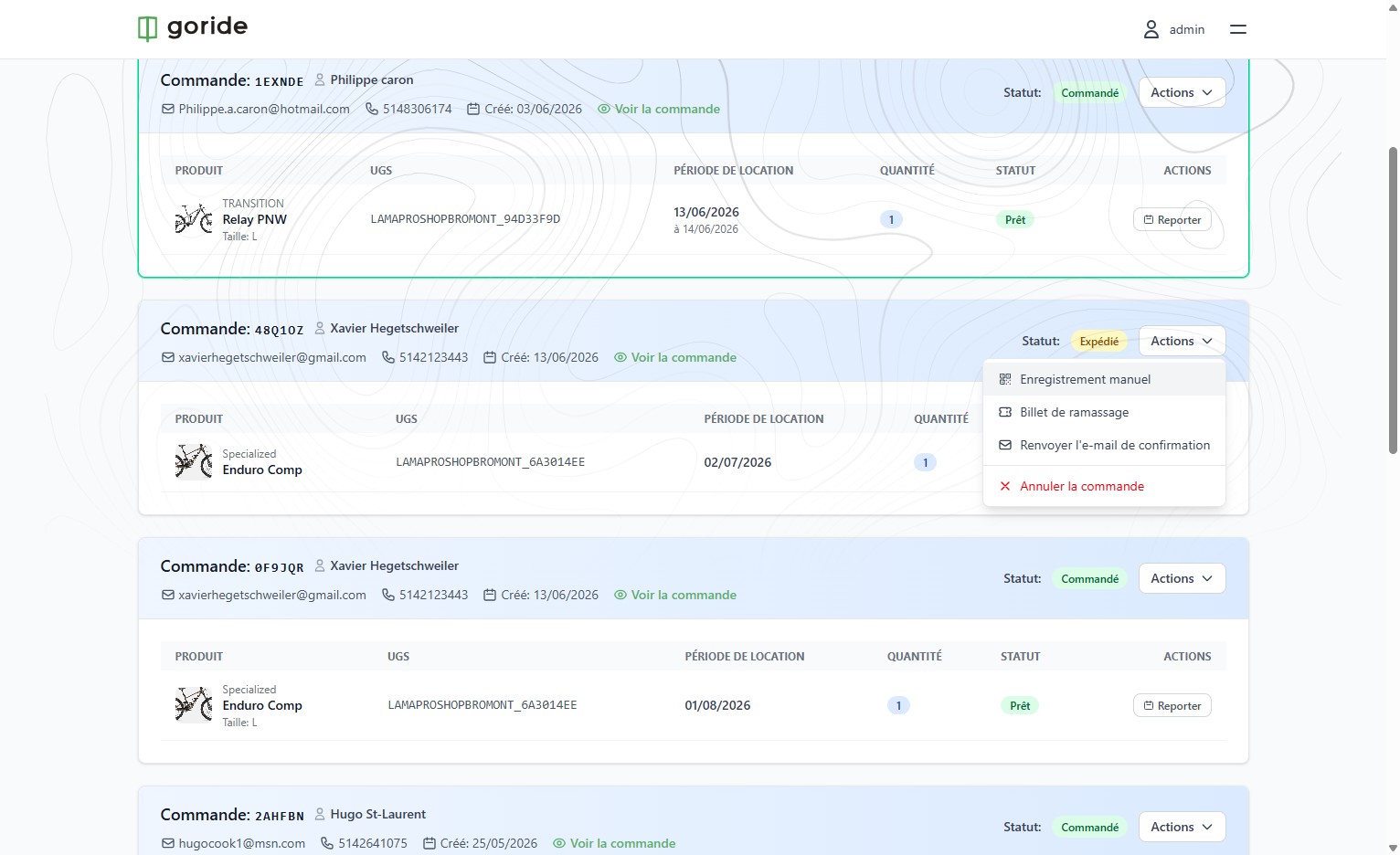
Step 15 — Status Updates to "Arrivés"
The status will change to "Arrivés — vélos retournés". A return timestamp is added for traceability.
Step 16 — "Arrivé" Order Status in Bookings List
The booking list will now show "Arrivé" as the order status and "Retourné" as the item status.
Step 17 — "Retourné" Status Visible in Bookings List
The booking list will now show "Retourné" as the order status, confirming the rental is fully closed.
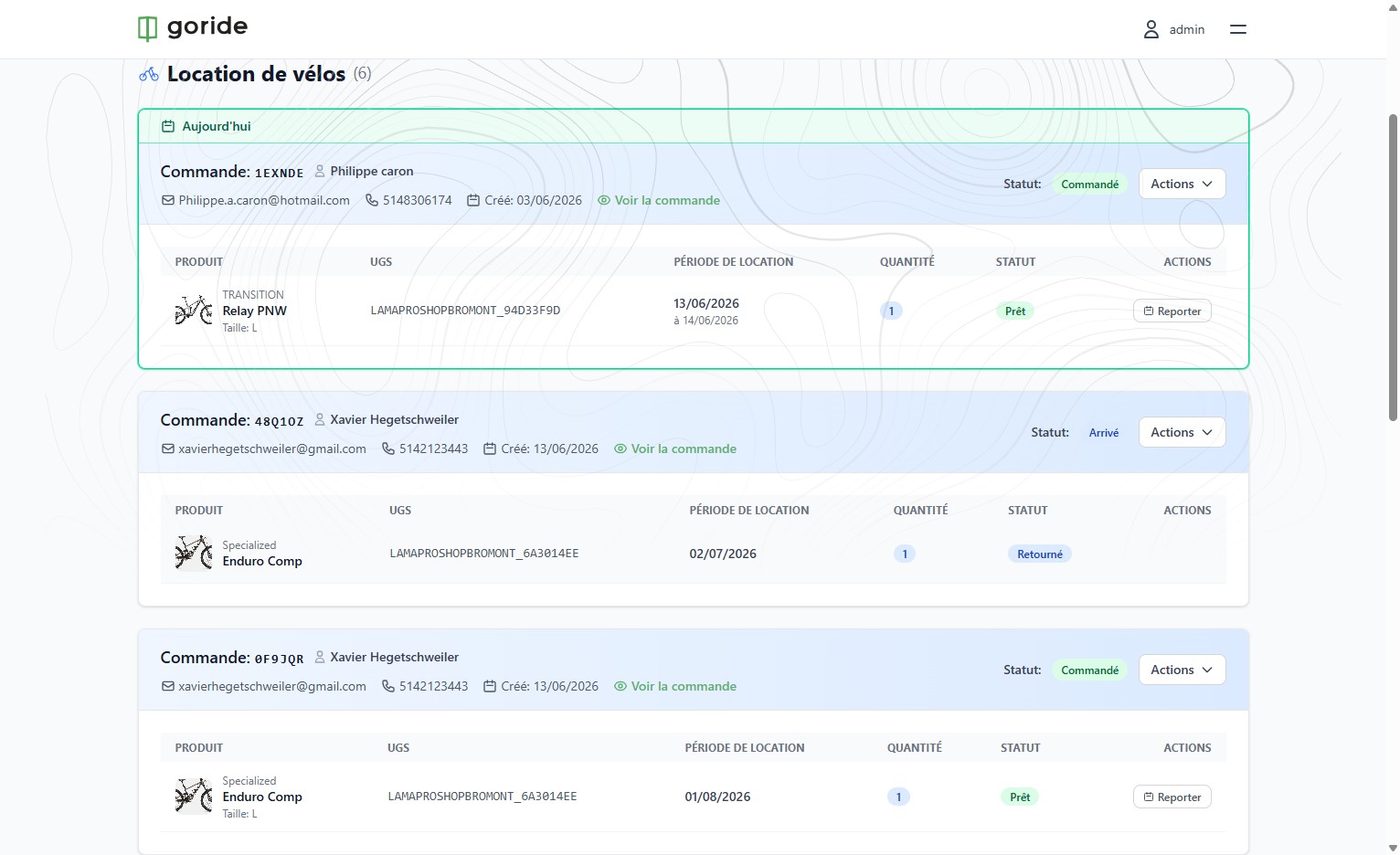
Bike Status Successfully Updated
Your fleet tracking is now up to date. Both pickup and return timestamps are logged and visible in the booking record.