Step 1 — Go to Your Dashboard
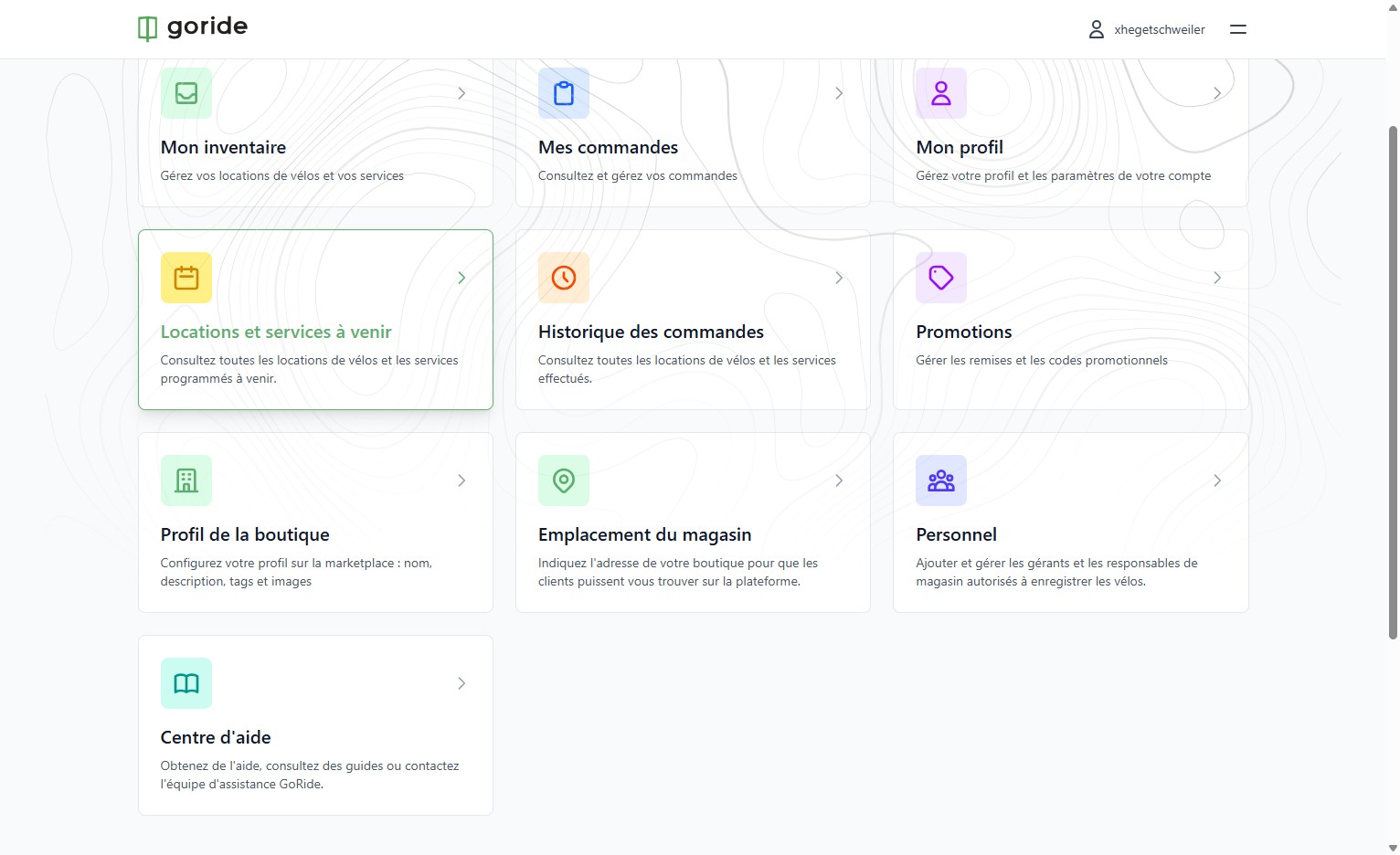
Navigate to your GoRide merchant dashboard.
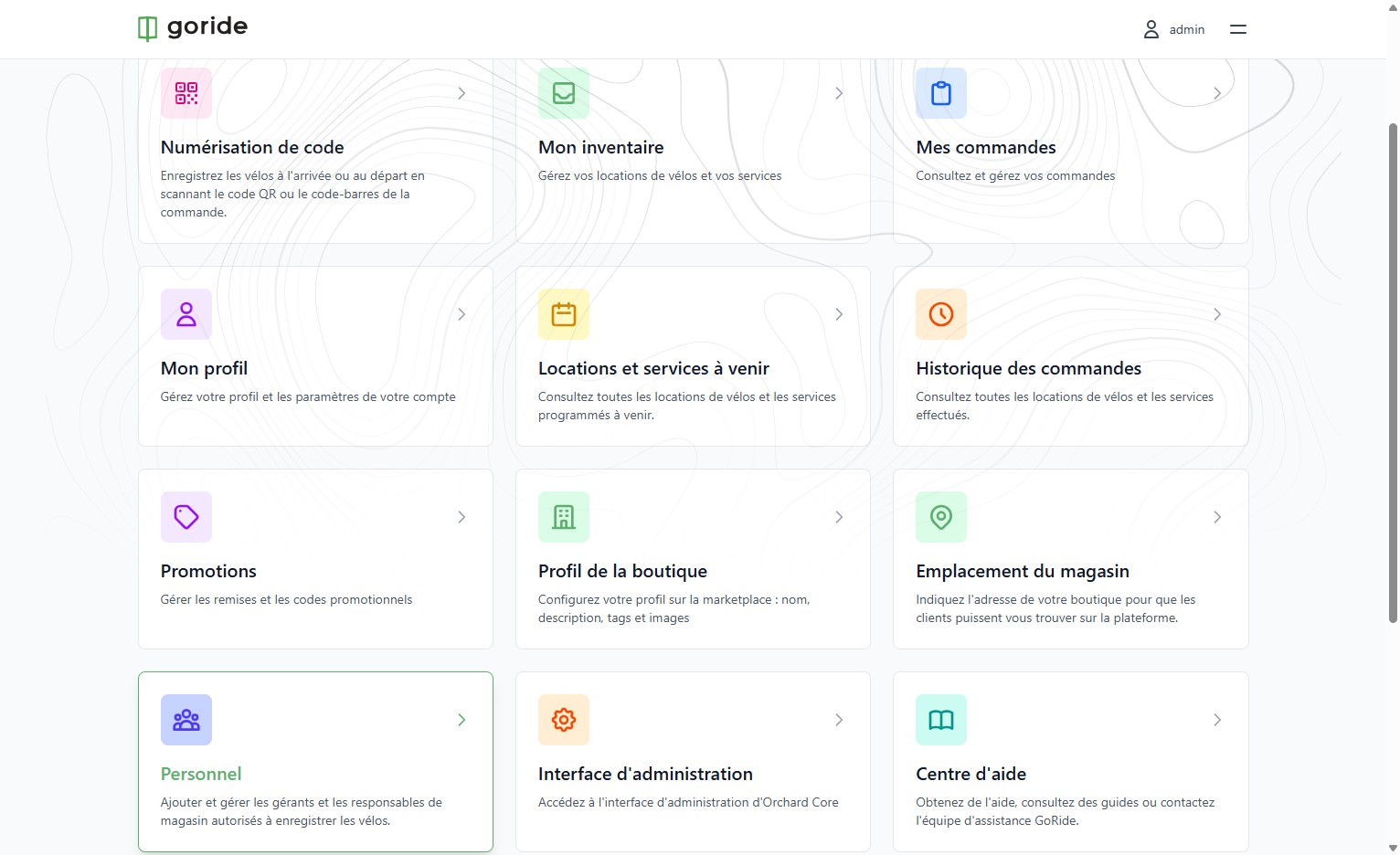
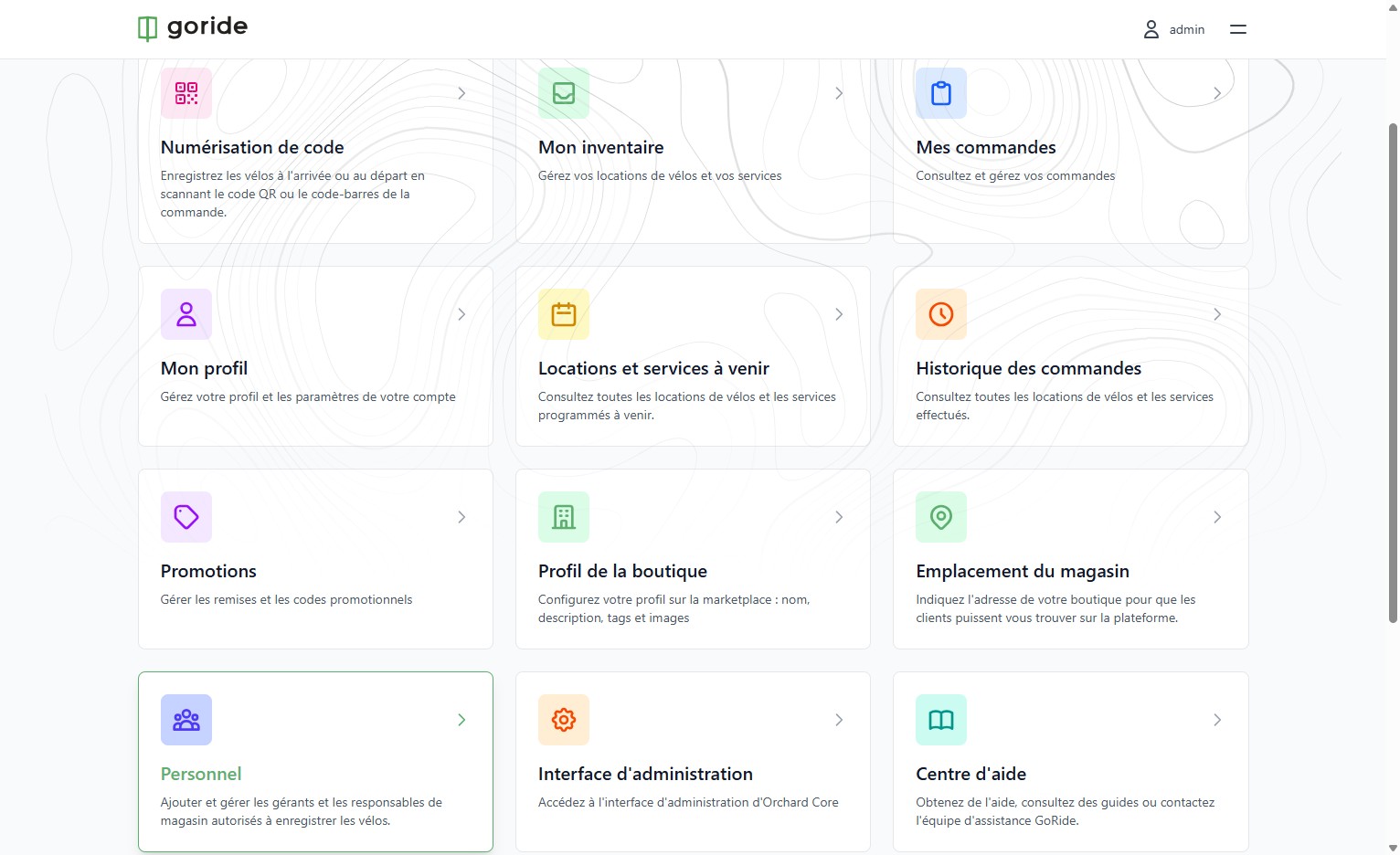
Step 2 — Open the Personnel Section
Click on "Personnel" to access your staff management page.
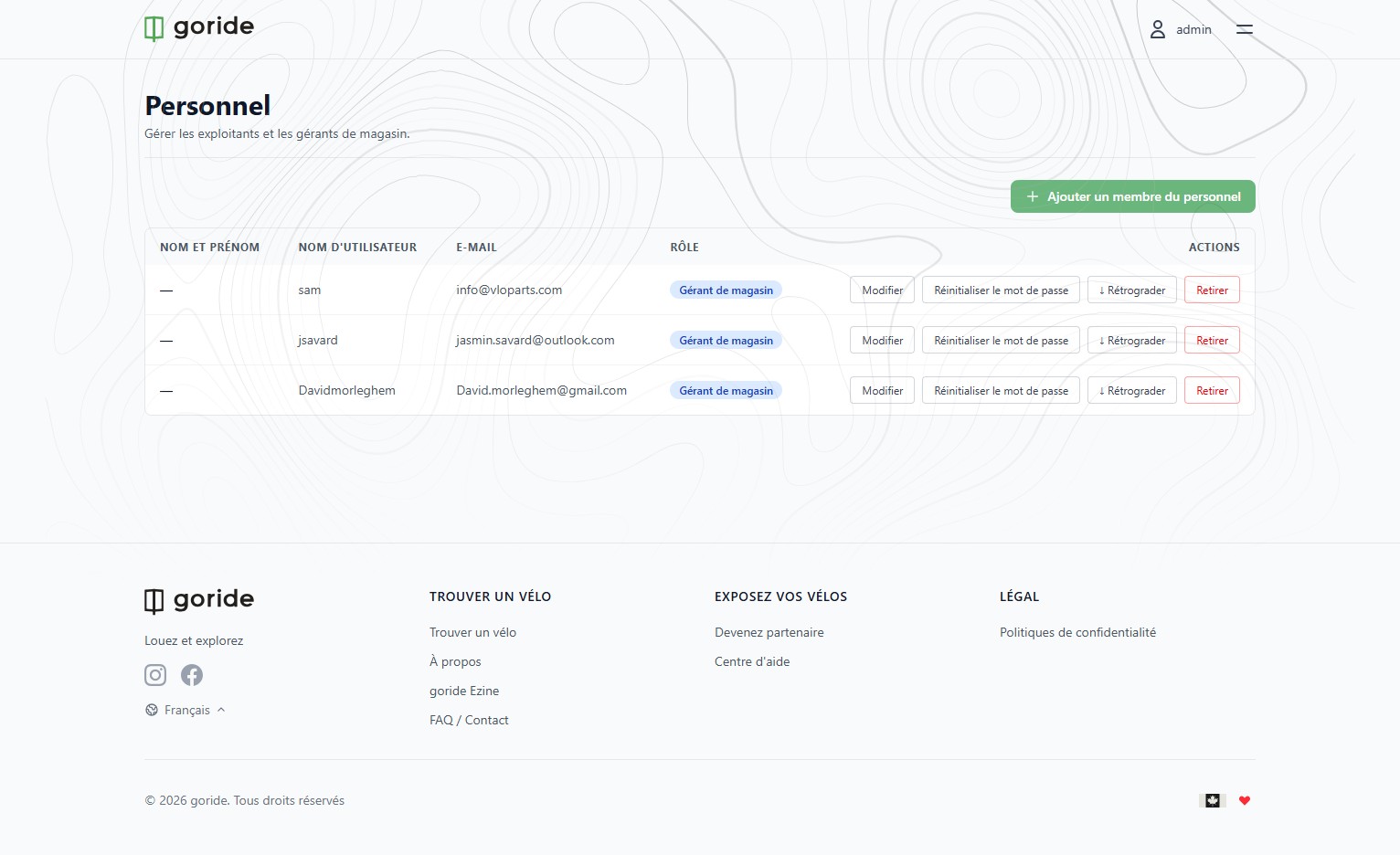
Step 3 — Add a New Staff Member
Click "Ajouter un membre du personnel" to begin adding a new employee.
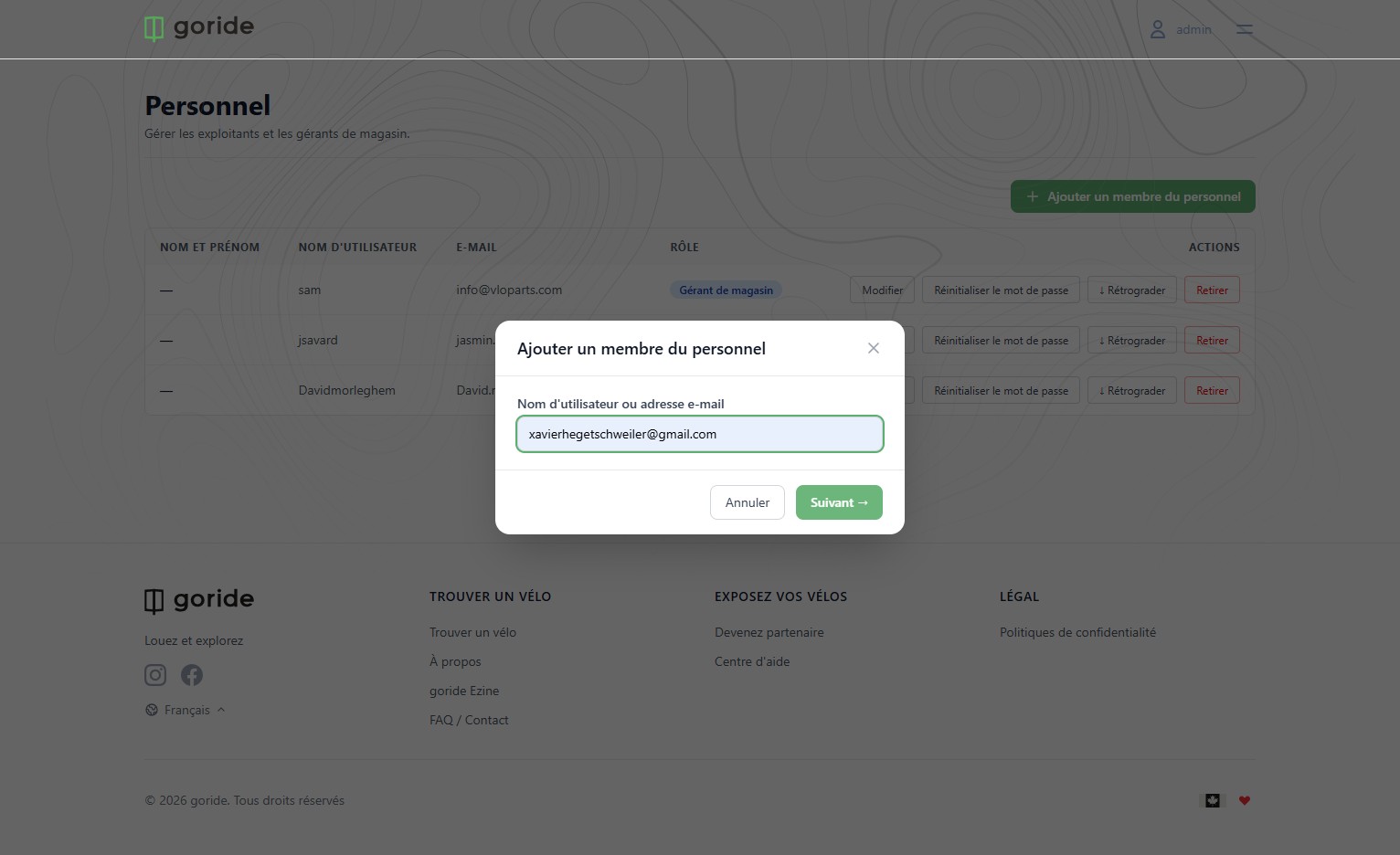
Step 4 — Enter the Employee's Email
Add the employee's email address and click "Suivant".
Step 5 — Link an Existing Account
If an account is already associated with this email address, you will be prompted to link it and assign a role to this account.
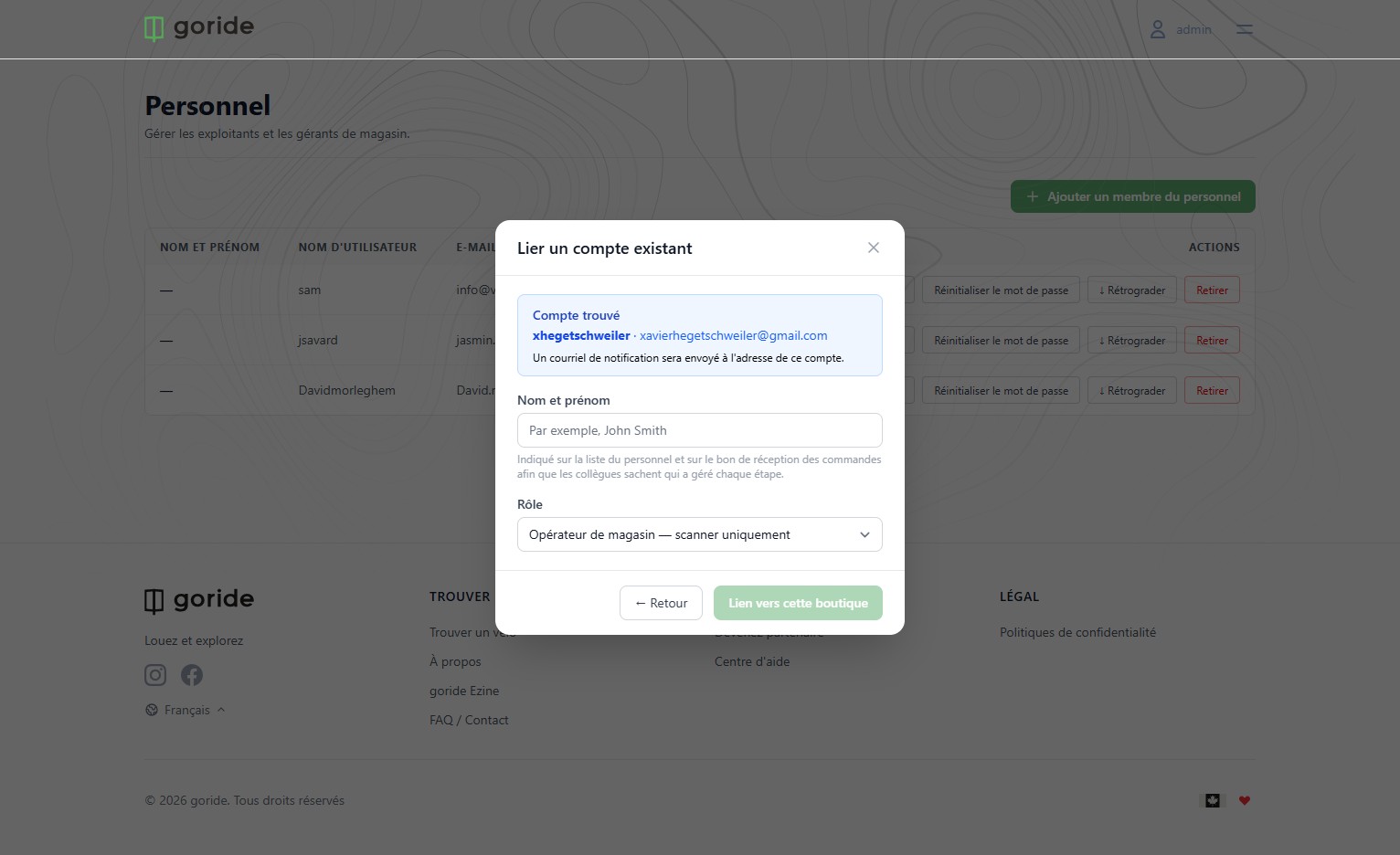
Step 6 — Create a New Account
If no account is associated with this email address, you will be prompted to create a new one. Make sure to check the "Envoyer les identifiants par courriel" box so your employee receives their login credentials by email.
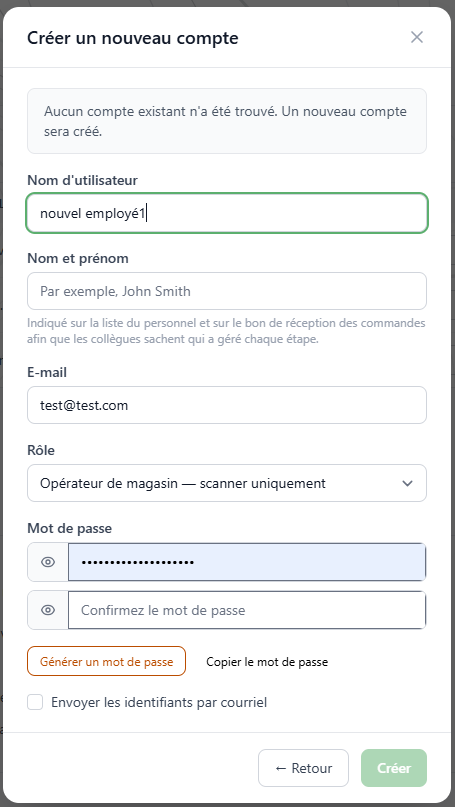
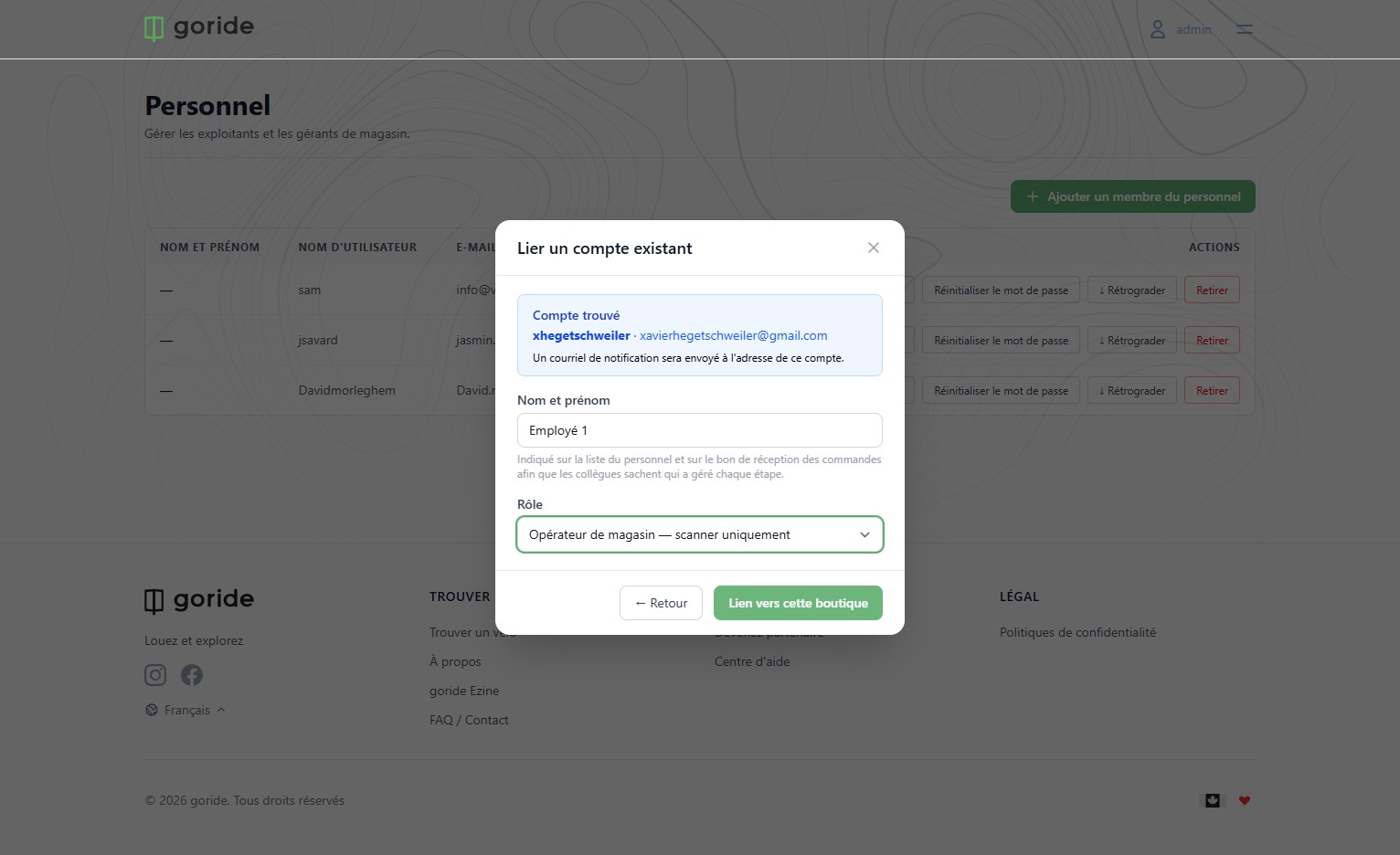
Step 7 — Select the Staff Member's Role
Choose the appropriate role: Shop Operator for limited access, or Shop Manager for full access.
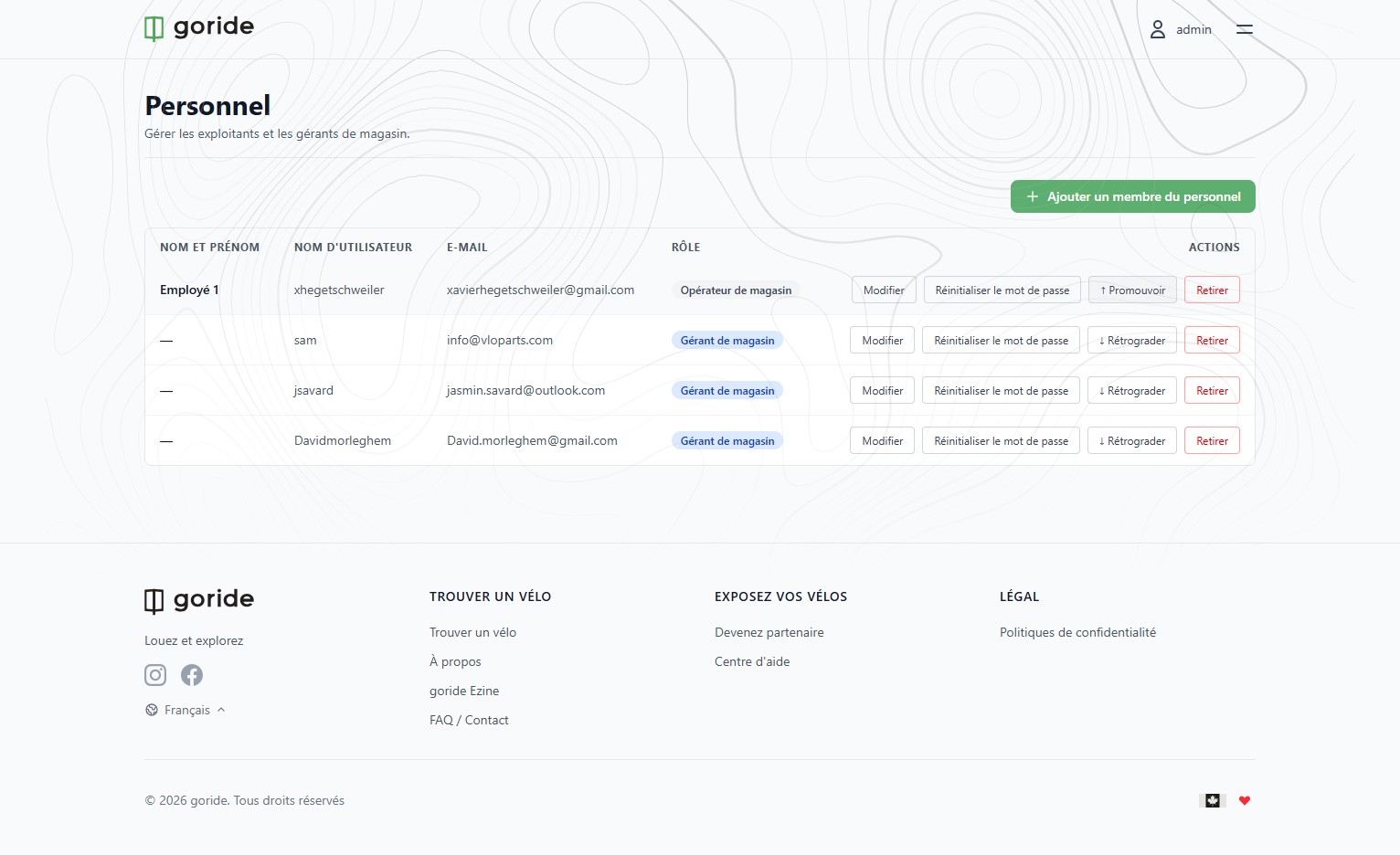
Step 8 — Staff Member Added
The user has been added as a staff member for your shop. From here you can change their role between Shop Manager and Shop Operator, or remove their access at any time.
Step 9 — Confirmation Email Sent
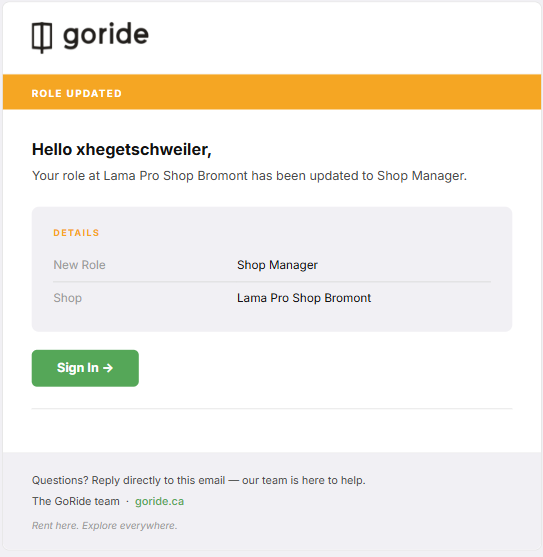
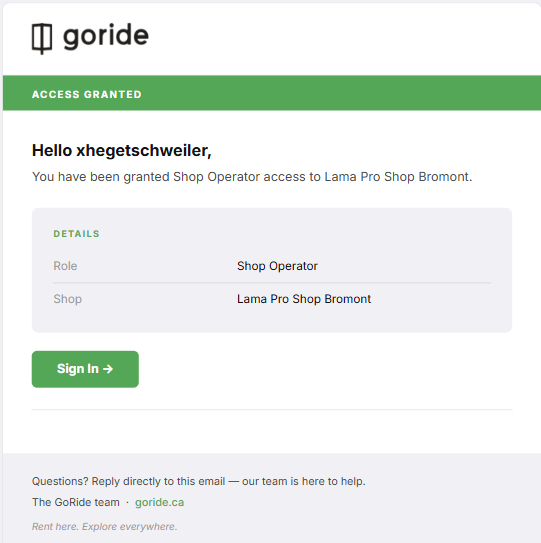
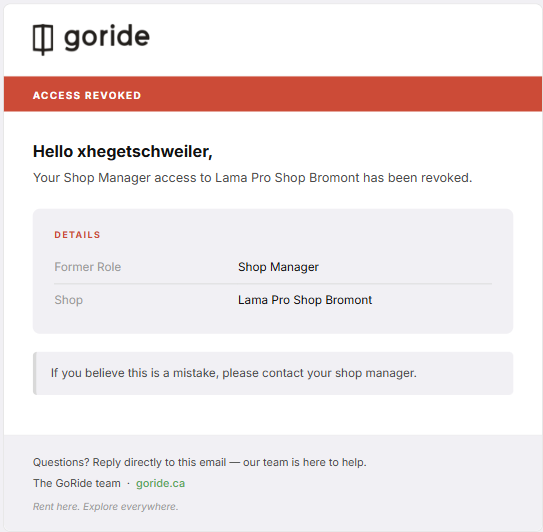
The employee will receive a confirmation email whenever their role is added, changed, or removed.
Step 10 — Shop Operator Dashboard
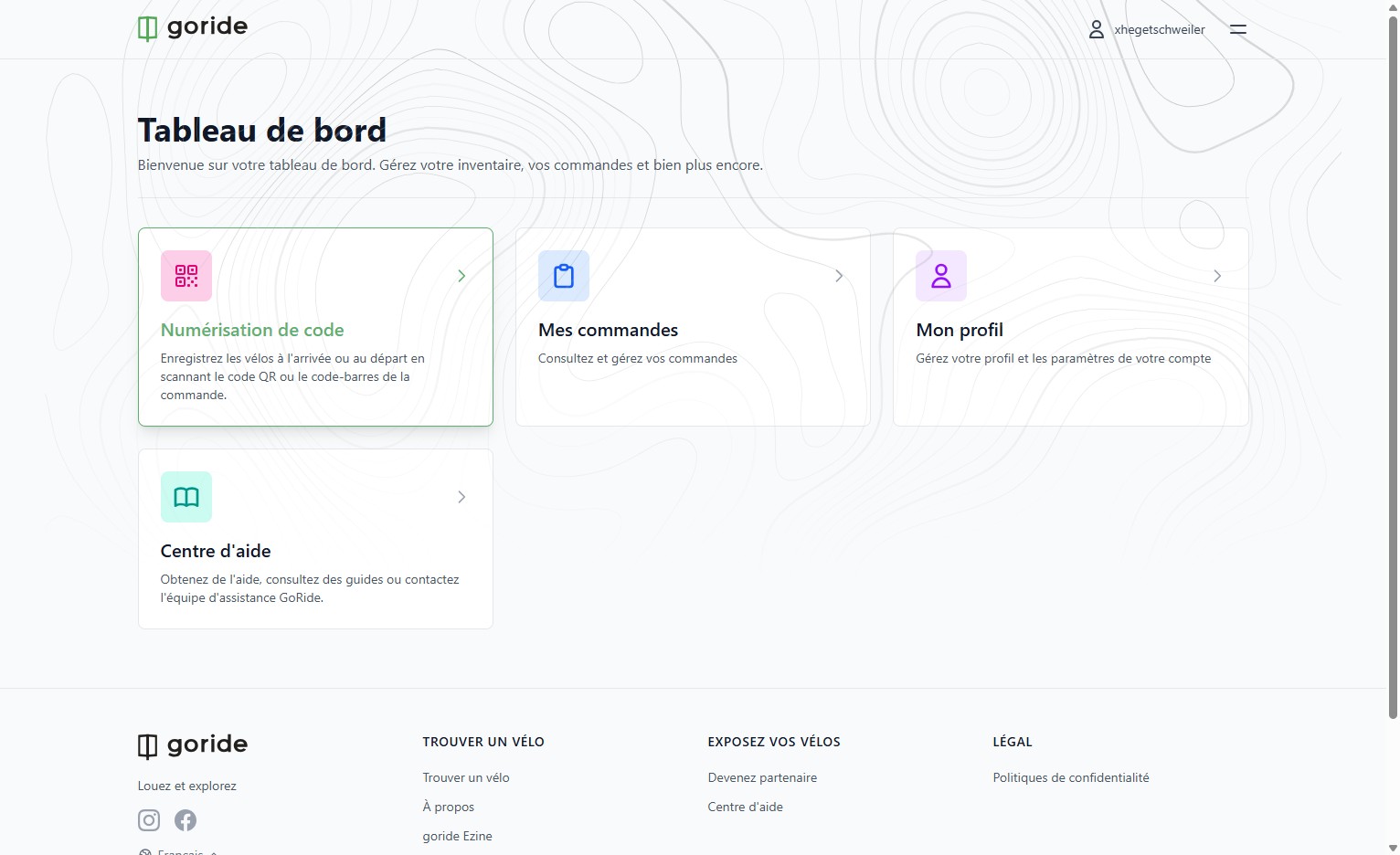
Here is what the dashboard looks like for a Shop Operator. This role gives limited access — the staff member can process orders and scan bikes, but cannot access inventory, promotions, or store settings.
Step 11 — Shop Manager Dashboard
Here is what the dashboard looks like for a Shop Manager. This role gives full access to all GoRide features, including inventory, promotions, store profile, and staff management.
Staff Member Active
Your new staff member can now log in and access GoRide with the permissions you assigned. You can update roles or remove access at any time from the "Personnel" section.